> For the complete documentation index, see [llms.txt](https://legacy-docs.aragon.org/llms.txt). Markdown versions of documentation pages are available by appending `.md` to page URLs; this page is available as [Markdown](https://legacy-docs.aragon.org/japanese-aragon-user-documentation/products/setting-up-a-gnosis-safe-multisig-wallet.md).

# Setting up a Gnosis Safe MultiSig Wallet

{% hint style="info" %}
In this section, we will look into how Aragon Client DAOs can be managed by a **MultiSig wallet**.
{% endhint %}

{% hint style="warning" %}
Here we are going to use [**Gnosis Safe MultiSig**](https://gnosis-safe.io), however, you could follow a similar approach for any other MultiSig wallet that supports contract interaction.
{% endhint %}

###

## Setting up the necessary permissions

{% hint style="info" %}
Aragon Client DAOs have access to a control system, where each action is protected by a set of permission records. Only someone with specific permissions can act.

**That is why we need to assign the MultiSig wallet to a range of permissions in the DAO that correspond with the desired actions.**

You can read more about permission settings [here](/japanese-aragon-user-documentation/products/aragon-client/explore-template-dao/system-setting/permissions-setting.md).
{% endhint %}

In this example an Aragon Client DAO has a balance of ETH tokens stored in its Vault and you want to initiate a payment to compensate a DAO Contributor for her work. We will show how to **initiate a withdrawal of some of the ETH to the Contributor.**

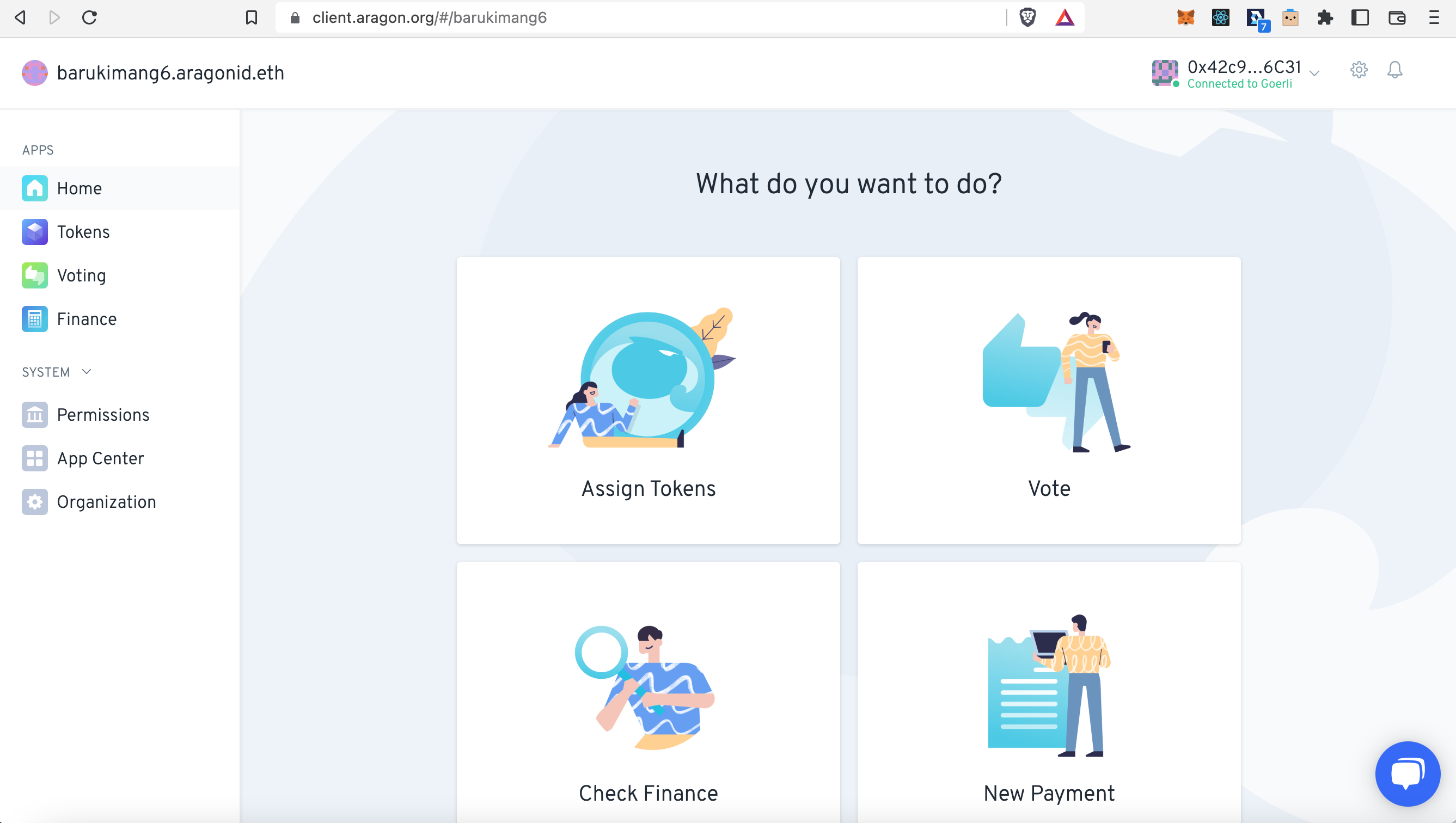
Start by opening your Aragon Client DAO, you should see a similar dashboard as in the image below. Click in the left hand menu on 'Permissions':

<figure><img src="https://3850908891-files.gitbook.io/~/files/v0/b/gitbook-x-prod.appspot.com/o/spaces%2FaXHvfzzRoYTP2LsKM0Z6%2Fuploads%2F2Y4pLhW87HLPJlbRNP3N%2Fa1_Sig.png?alt=media&amp;token=04ae581c-cea8-49cc-a2d0-ac1be6304512" alt=""><figcaption></figcaption></figure>

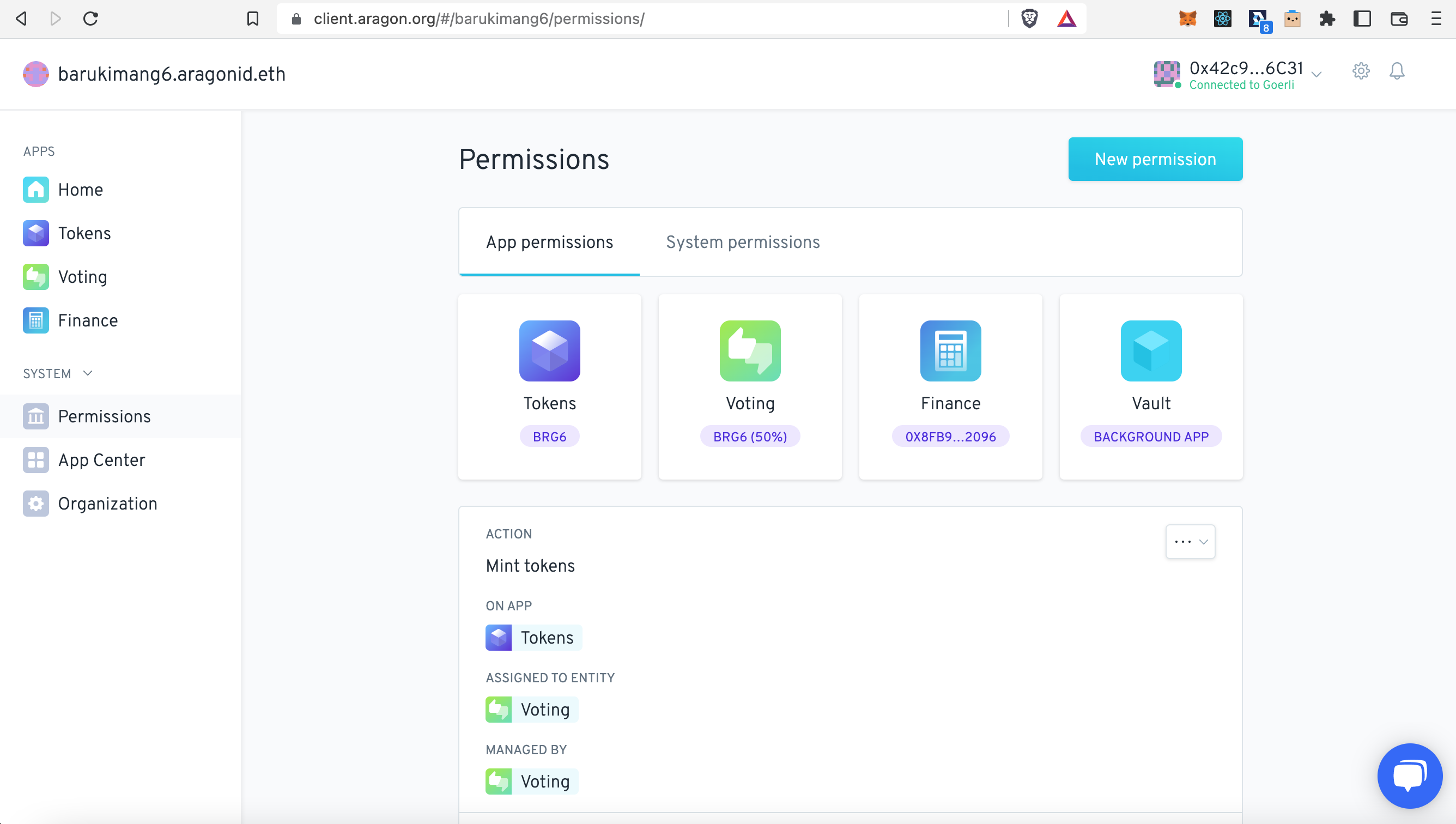
We want to add new permissions for your MultiSig, so click in this screen on 'New permission':

<figure><img src="https://3850908891-files.gitbook.io/~/files/v0/b/gitbook-x-prod.appspot.com/o/spaces%2FaXHvfzzRoYTP2LsKM0Z6%2Fuploads%2FpchqGWmv2qYhVAVMAMhW%2Fa2_sig.png?alt=media&amp;token=26175981-1f96-4178-b5d6-529f1ff22d9c" alt=""><figcaption></figcaption></figure>

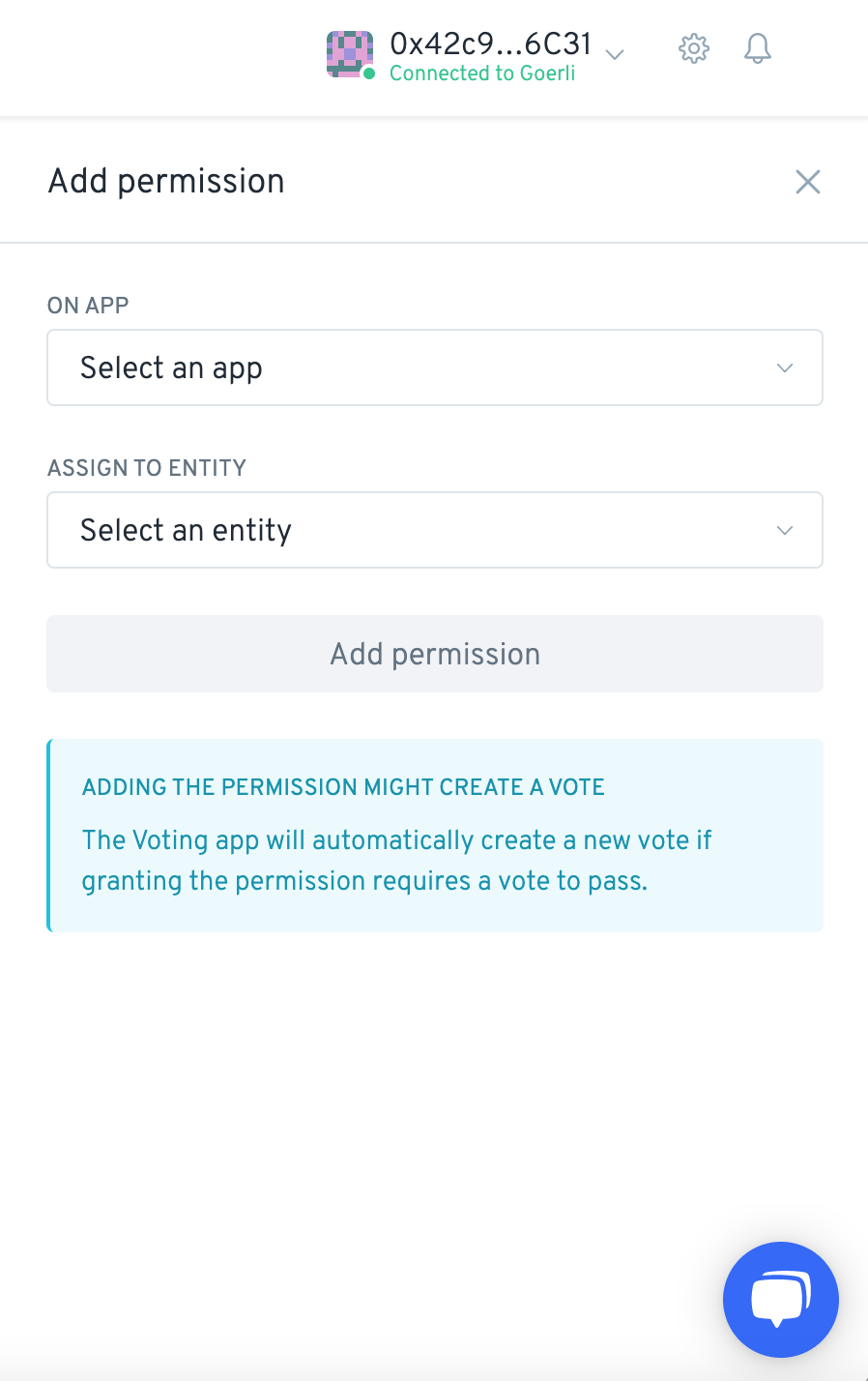
You should see the following side-window appear. Click on 'Select an app':

<figure><img src="https://3850908891-files.gitbook.io/~/files/v0/b/gitbook-x-prod.appspot.com/o/spaces%2FaXHvfzzRoYTP2LsKM0Z6%2Fuploads%2Fp53p5ac8tSJiFVNPmg5f%2Fa3_sig.png?alt=media&amp;token=3673d68f-c4f8-4733-bbc9-e4d6b42891d4" alt=""><figcaption></figcaption></figure>

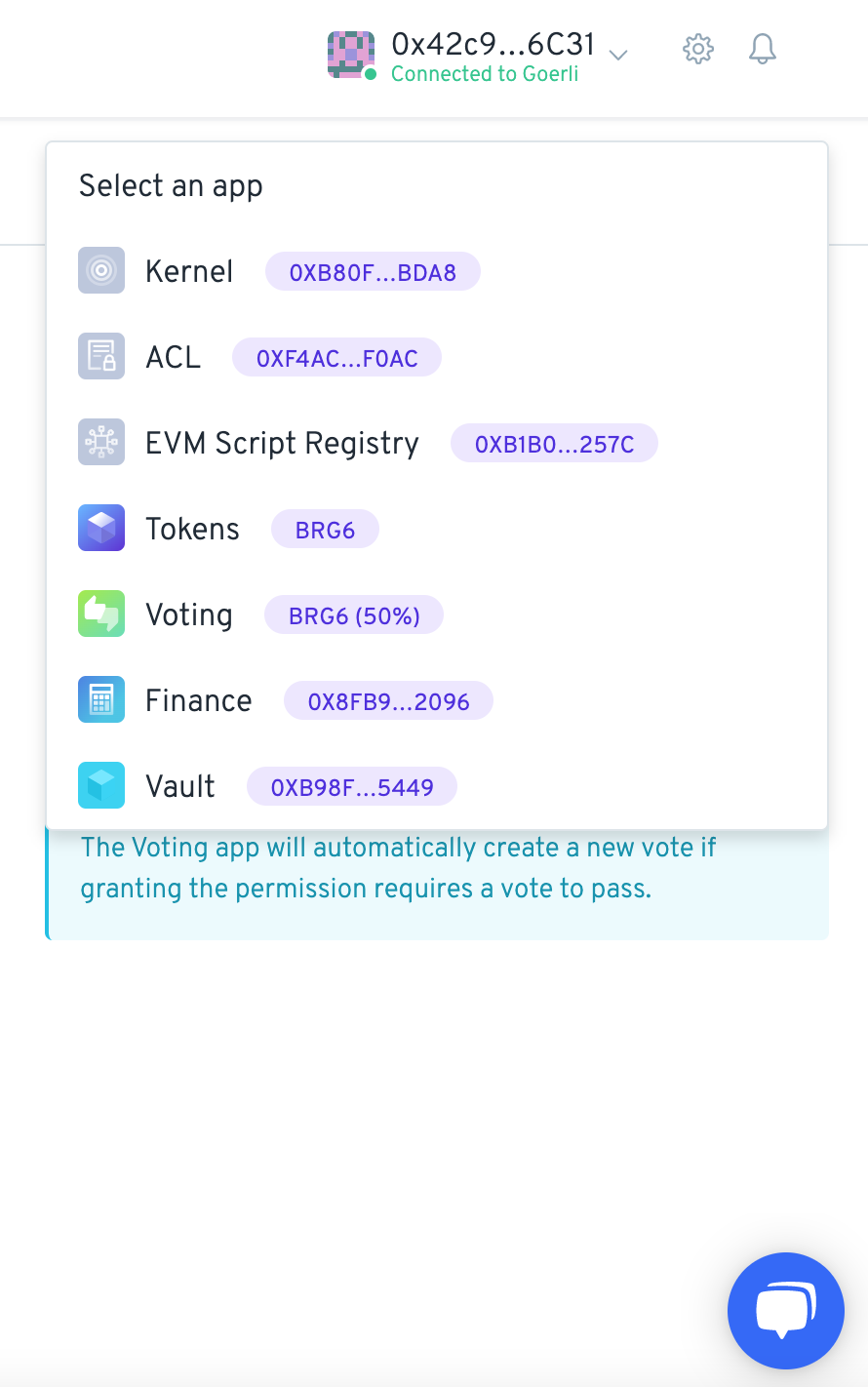
For this example we want to initiate a withdrawal of ETH by the MultiSig. This is usually done from the Finance app of the DAO, so select 'Finance' here and then click on 'Select an entity':

<figure><img src="https://3850908891-files.gitbook.io/~/files/v0/b/gitbook-x-prod.appspot.com/o/spaces%2FaXHvfzzRoYTP2LsKM0Z6%2Fuploads%2FKxqUmYmvKmos4HuQzYZG%2Fa4_sig.png?alt=media&amp;token=6d95c29d-e757-482b-a26c-17d76b9d321c" alt=""><figcaption></figcaption></figure>

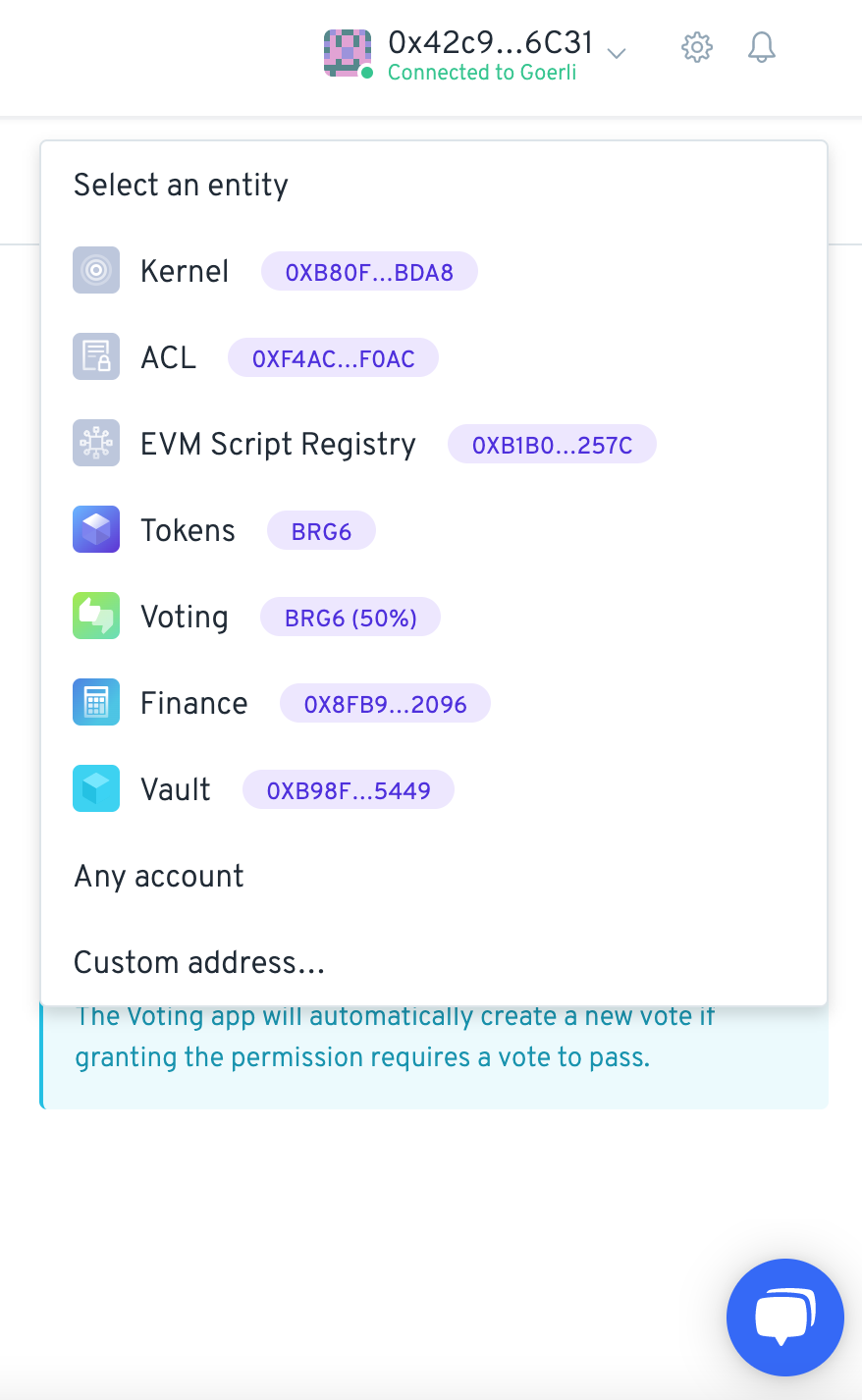
Since we need to add the address of your MultiSig, click here on 'Custom address...':

<figure><img src="https://3850908891-files.gitbook.io/~/files/v0/b/gitbook-x-prod.appspot.com/o/spaces%2FaXHvfzzRoYTP2LsKM0Z6%2Fuploads%2FTsQEQzSNxrQHe2o64bIf%2Fa5_sig.png?alt=media&amp;token=2a1211ae-629f-4479-a401-d6db2f97e24b" alt=""><figcaption></figcaption></figure>

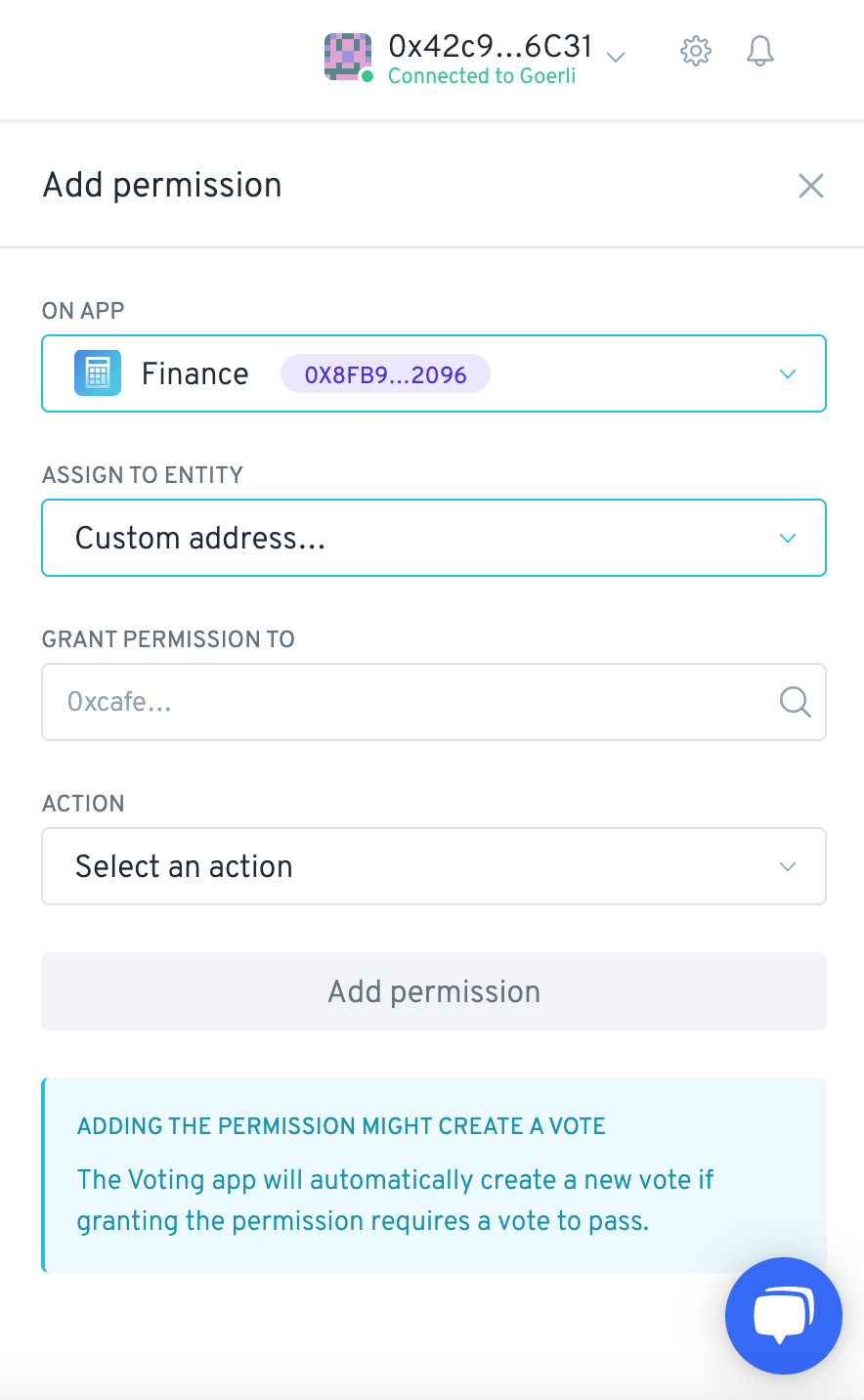
Now go to your Gnosis Safe, copy its address and paste the address of your MultiSig in the 'GRANT PERMISSION TO' box. Then click on 'Select an action':

<figure><img src="https://3850908891-files.gitbook.io/~/files/v0/b/gitbook-x-prod.appspot.com/o/spaces%2FaXHvfzzRoYTP2LsKM0Z6%2Fuploads%2FUqXDGBNOpuQHHLnbxiSI%2Fa6_sig.png?alt=media&amp;token=71696eaf-ba54-418c-a33e-364b9437022d" alt=""><figcaption></figcaption></figure>

{% hint style="danger" %}
Do not forget to remove the letters from the front of the Gnosis Safe address,**`eth:`**&#x6F;&#x72;**`gor:`**&#x6F;r different depending on the network you use! Otherwise it won't work..
{% endhint %}

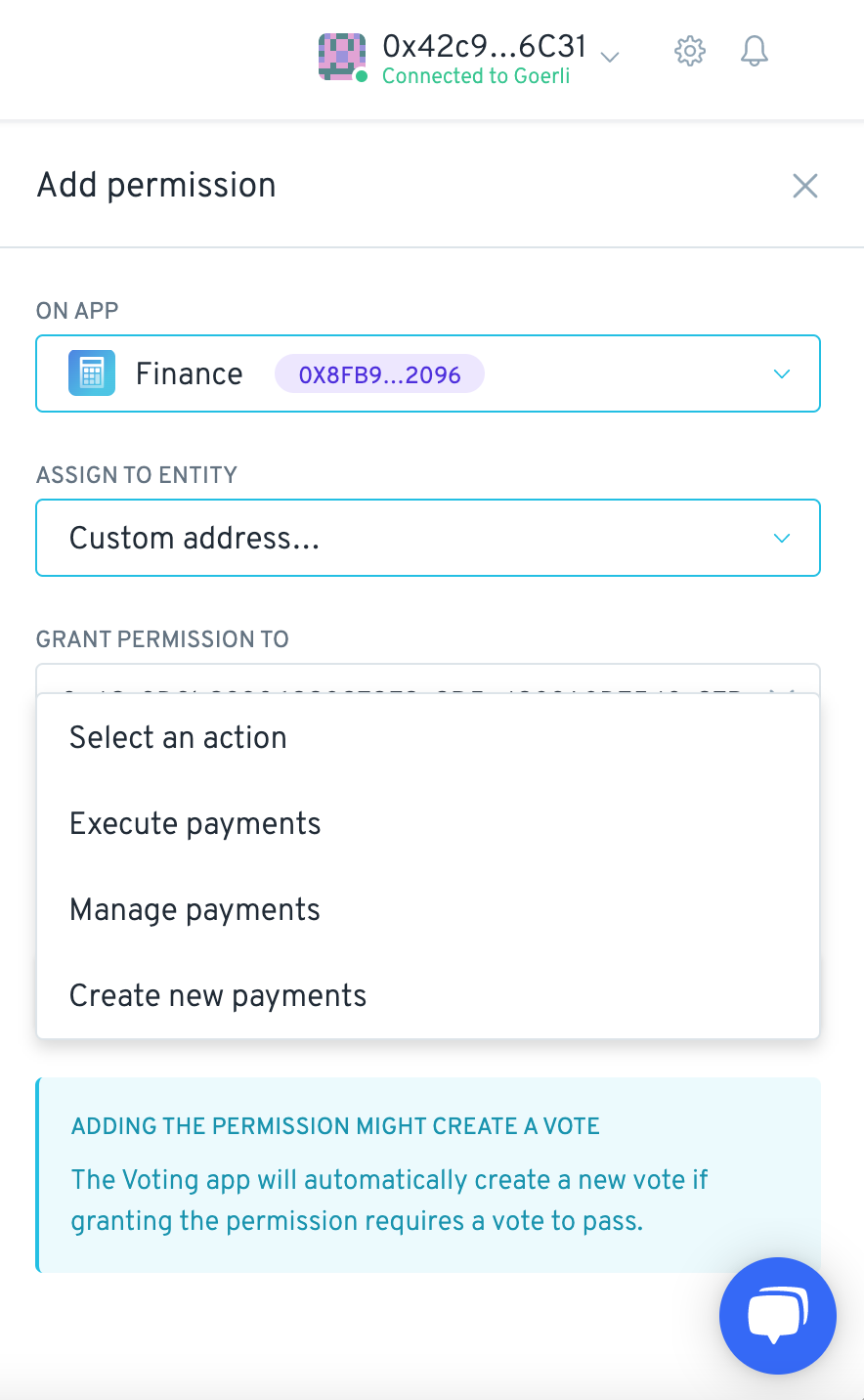
In this case we want to initiate a new payment, so click on 'Create new payments':

<figure><img src="https://3850908891-files.gitbook.io/~/files/v0/b/gitbook-x-prod.appspot.com/o/spaces%2FaXHvfzzRoYTP2LsKM0Z6%2Fuploads%2FViQj2TJ9UBYw3PcsGlTc%2Fa7_sig.png?alt=media&amp;token=dae527f4-5ef6-4ac2-8b5c-5f1f26f70bef" alt=""><figcaption></figcaption></figure>

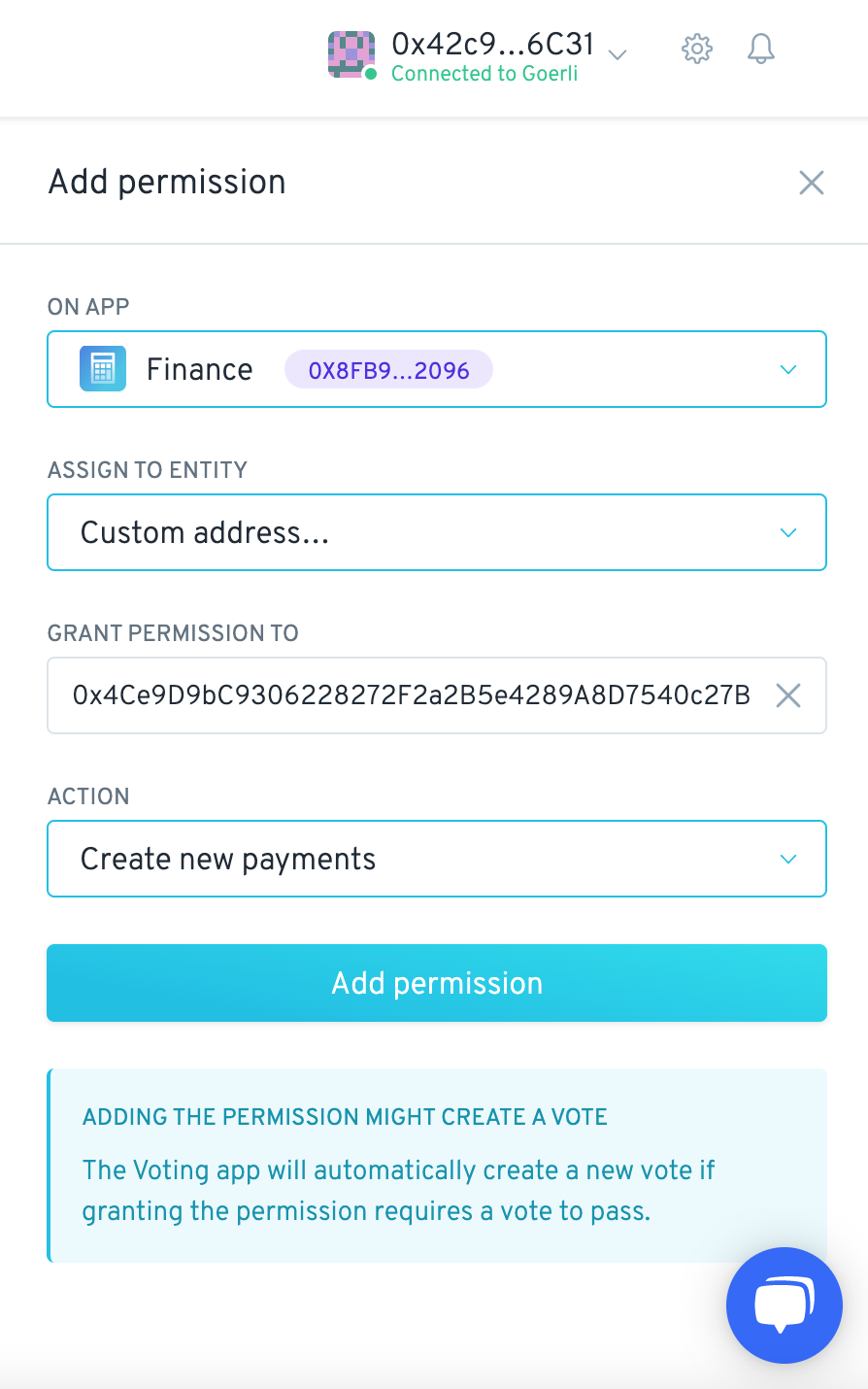
Now you filled the required boxes, click on 'Add permission':

<figure><img src="https://3850908891-files.gitbook.io/~/files/v0/b/gitbook-x-prod.appspot.com/o/spaces%2FaXHvfzzRoYTP2LsKM0Z6%2Fuploads%2FQP1hjI7EvwgM5NCwm3nb%2Fa8_sig.png?alt=media&amp;token=fc5b3dcb-a6b5-4cf8-8bba-c82619e44442" alt=""><figcaption></figcaption></figure>

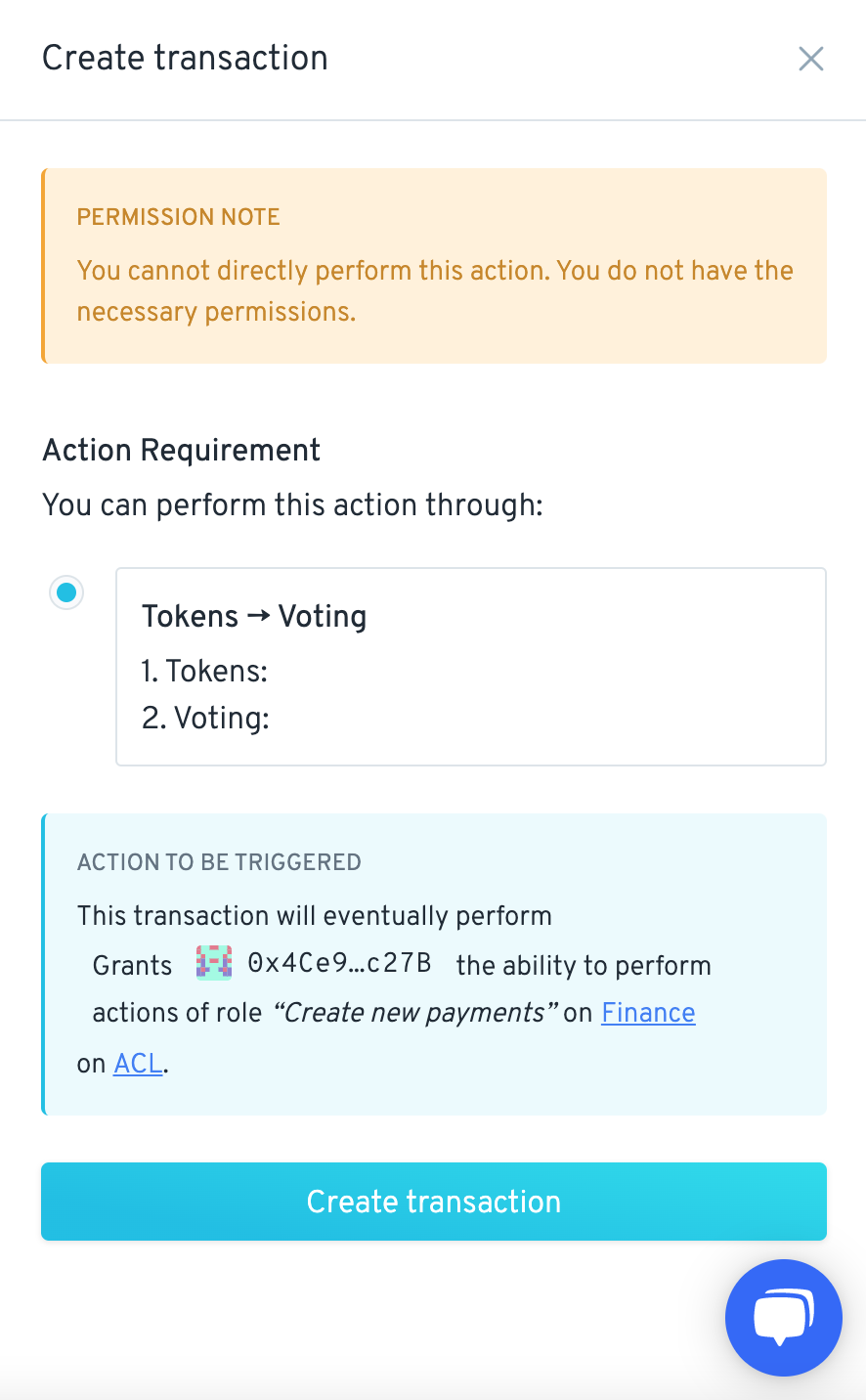
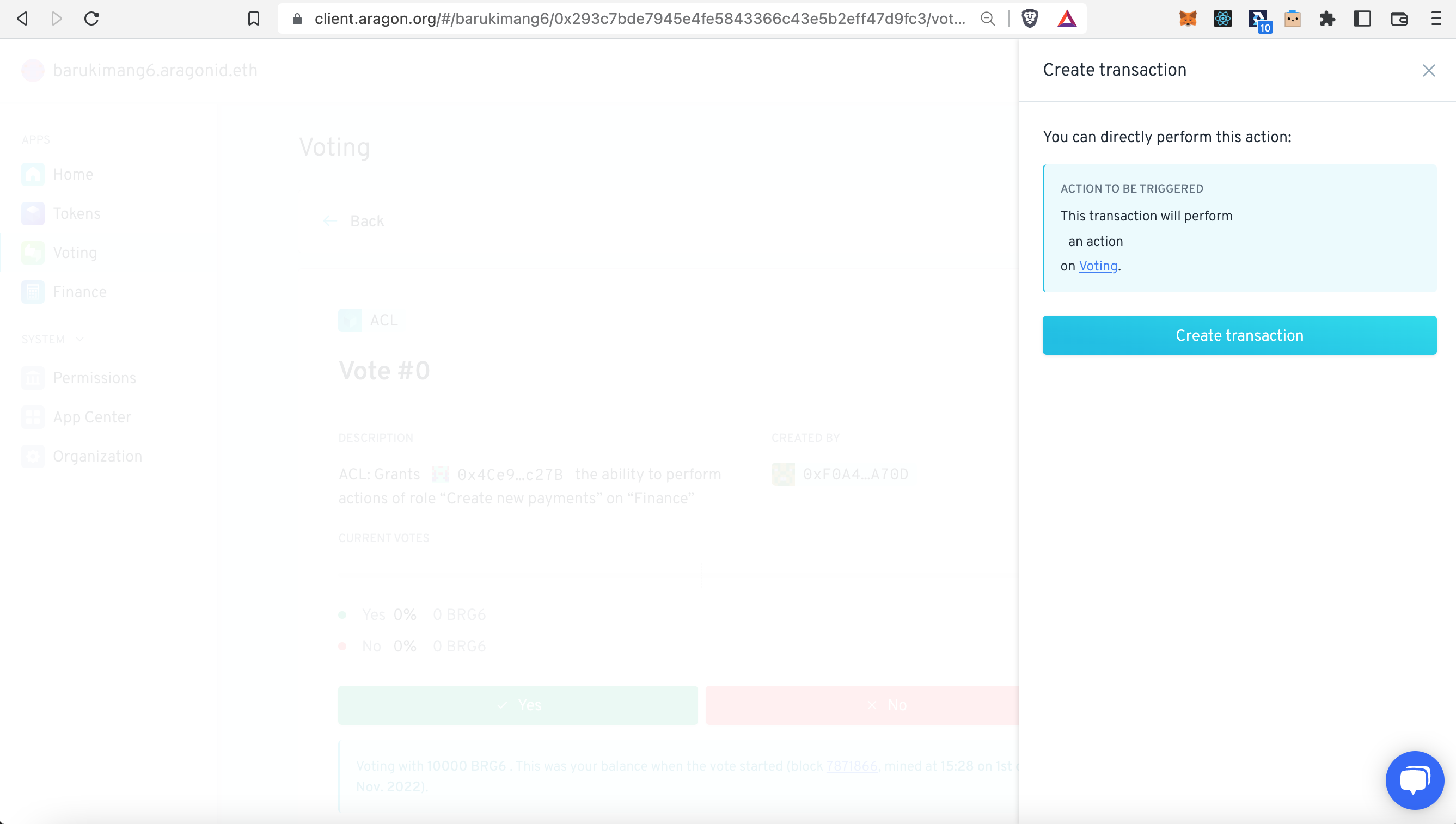
Here the app warns that the permission can not be directly changed, but that a vote will be created to change the permission. Click on 'Create transaction':

<figure><img src="https://3850908891-files.gitbook.io/~/files/v0/b/gitbook-x-prod.appspot.com/o/spaces%2FaXHvfzzRoYTP2LsKM0Z6%2Fuploads%2FnnhXVfBlwzXuxekErgBp%2Fa9_sig.png?alt=media&amp;token=adb6e311-821d-4768-ac82-2ee667620e9d" alt=""><figcaption></figcaption></figure>

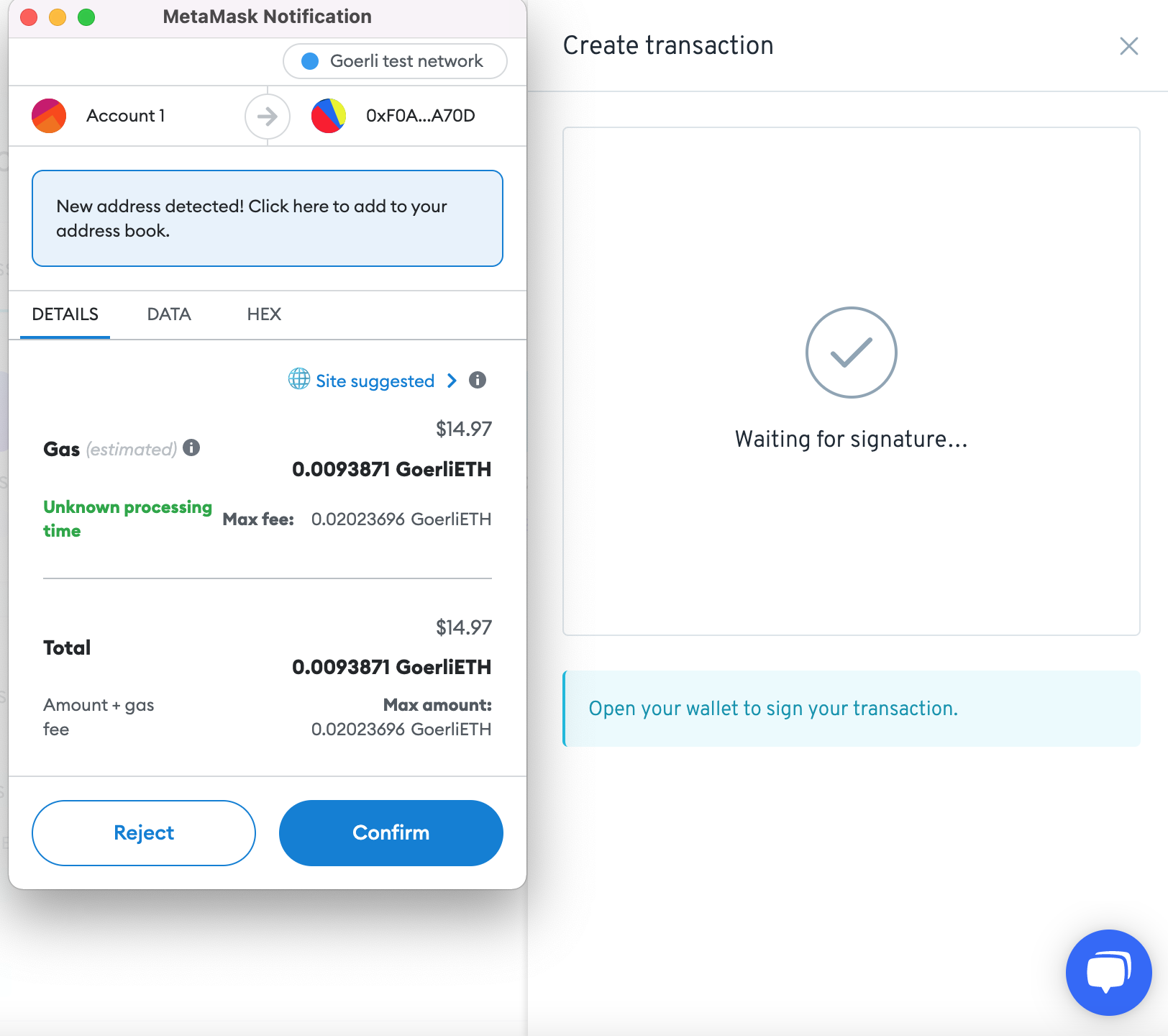
A transaction should pop-up in your Web3 Wallet, 'Confirm' the transaction:

<figure><img src="https://3850908891-files.gitbook.io/~/files/v0/b/gitbook-x-prod.appspot.com/o/spaces%2FaXHvfzzRoYTP2LsKM0Z6%2Fuploads%2Fji7fVKrnxrcguXYqomia%2Fa10_sig.png?alt=media&amp;token=f20f0112-e9d3-4a2f-9f3a-b348f74541a1" alt=""><figcaption></figcaption></figure>

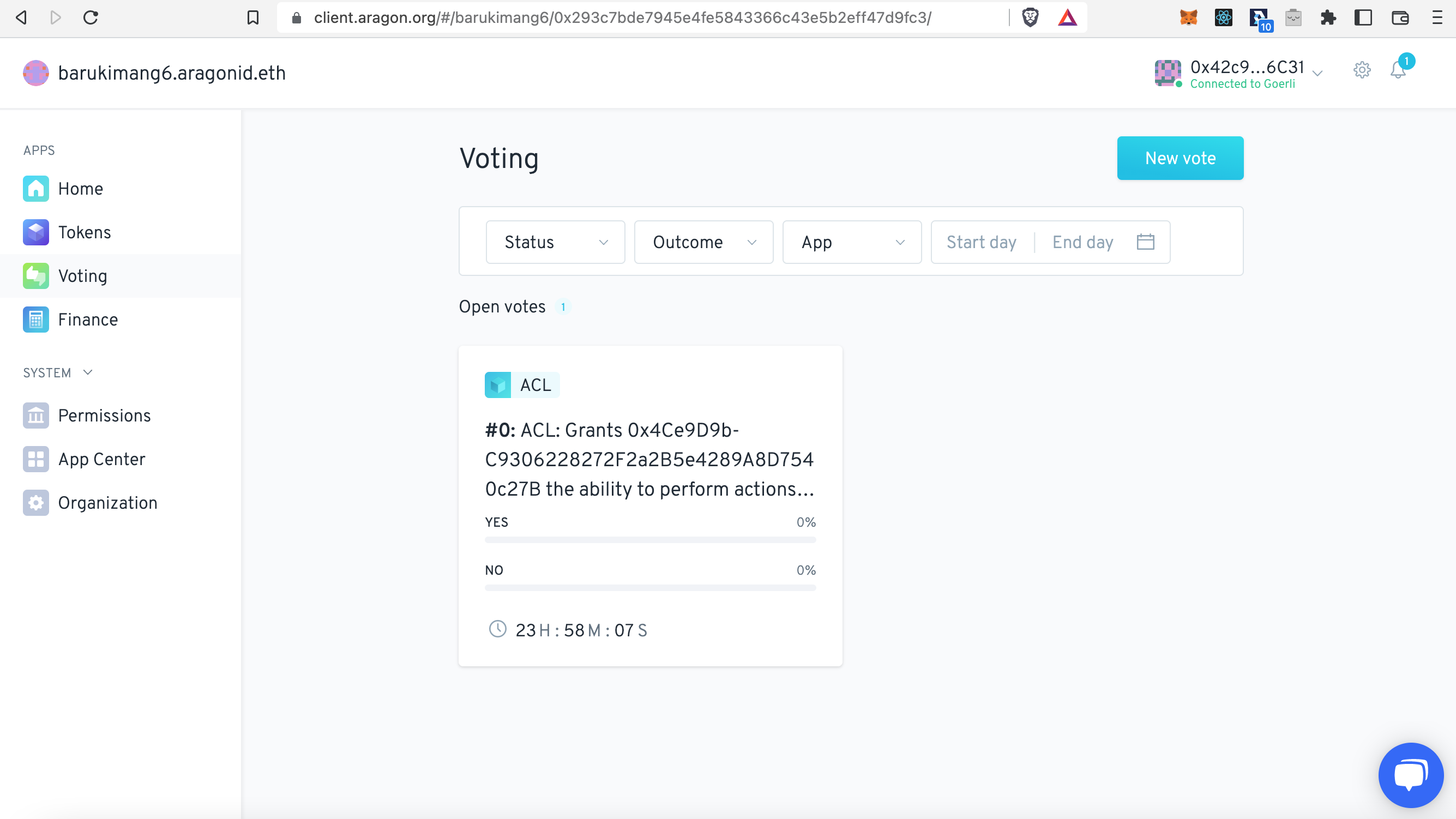
Once the transaction has processed, head over to the 'Voting' app of your DAO. You should see that an open vote has been generated. Click on the vote:

<figure><img src="https://3850908891-files.gitbook.io/~/files/v0/b/gitbook-x-prod.appspot.com/o/spaces%2FaXHvfzzRoYTP2LsKM0Z6%2Fuploads%2FlQJncuety5jFHqwVYCW3%2Fa11_sig.png?alt=media&amp;token=731e2f2d-e6b5-4f93-a6fd-4e9794202d39" alt=""><figcaption></figcaption></figure>

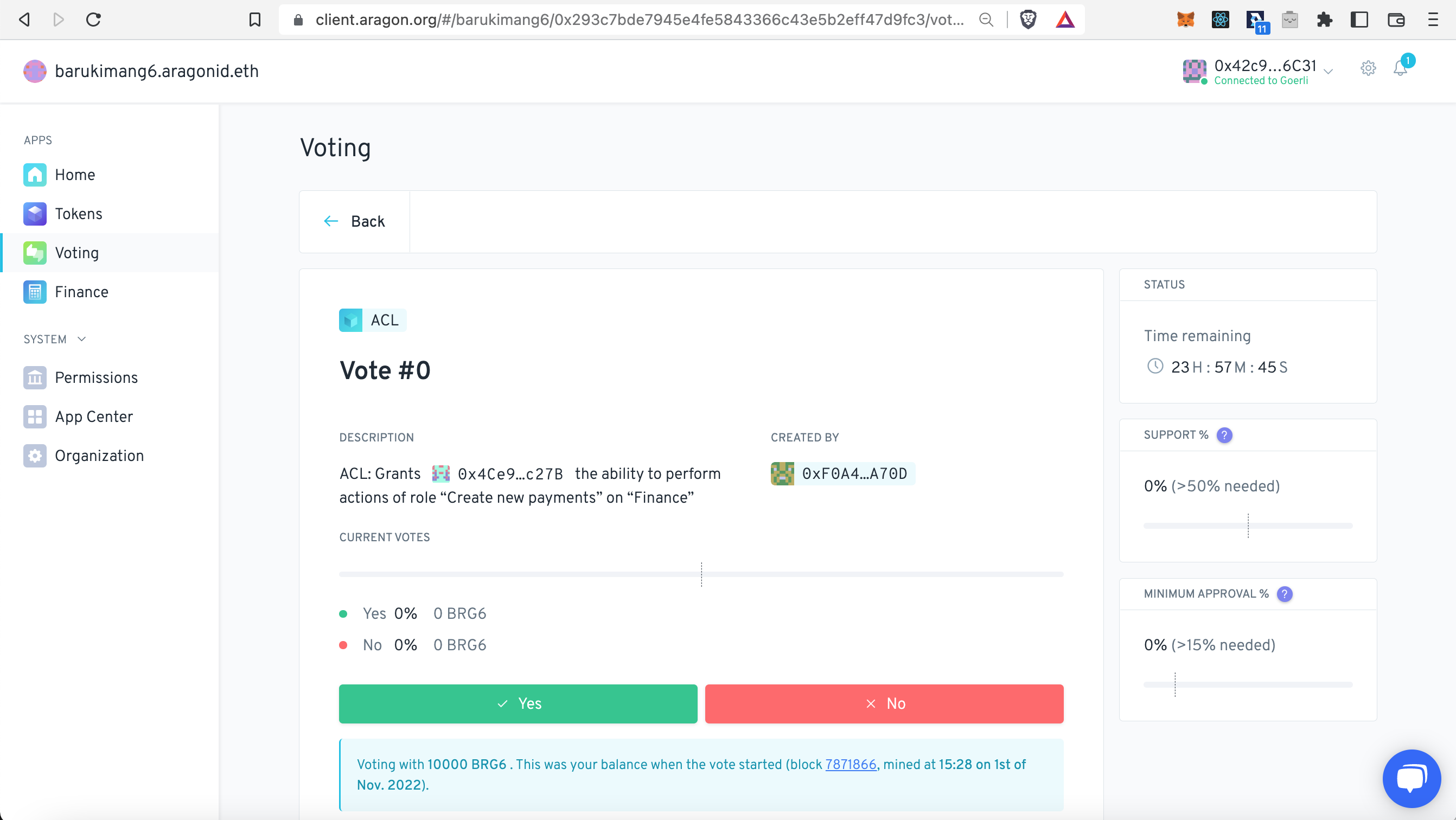
Now confirm the vote by clicking 'Yes':

<figure><img src="https://3850908891-files.gitbook.io/~/files/v0/b/gitbook-x-prod.appspot.com/o/spaces%2FaXHvfzzRoYTP2LsKM0Z6%2Fuploads%2FfEMmJYkQhMYtSF74AnbP%2Fa12_sig.png?alt=media&amp;token=f8f55fdb-3e29-4f8d-91d7-53993822c3a0" alt=""><figcaption></figcaption></figure>

Click here on 'Create transaction' and confirm the transaction that should pop-up in your Web3 Wallet:

<figure><img src="https://3850908891-files.gitbook.io/~/files/v0/b/gitbook-x-prod.appspot.com/o/spaces%2FaXHvfzzRoYTP2LsKM0Z6%2Fuploads%2FTrxDoM7agGRe5yTd5j2N%2Fa13_sig.png?alt=media&amp;token=5d5bbff8-cdc9-4003-824d-3488d87d257a" alt=""><figcaption></figcaption></figure>

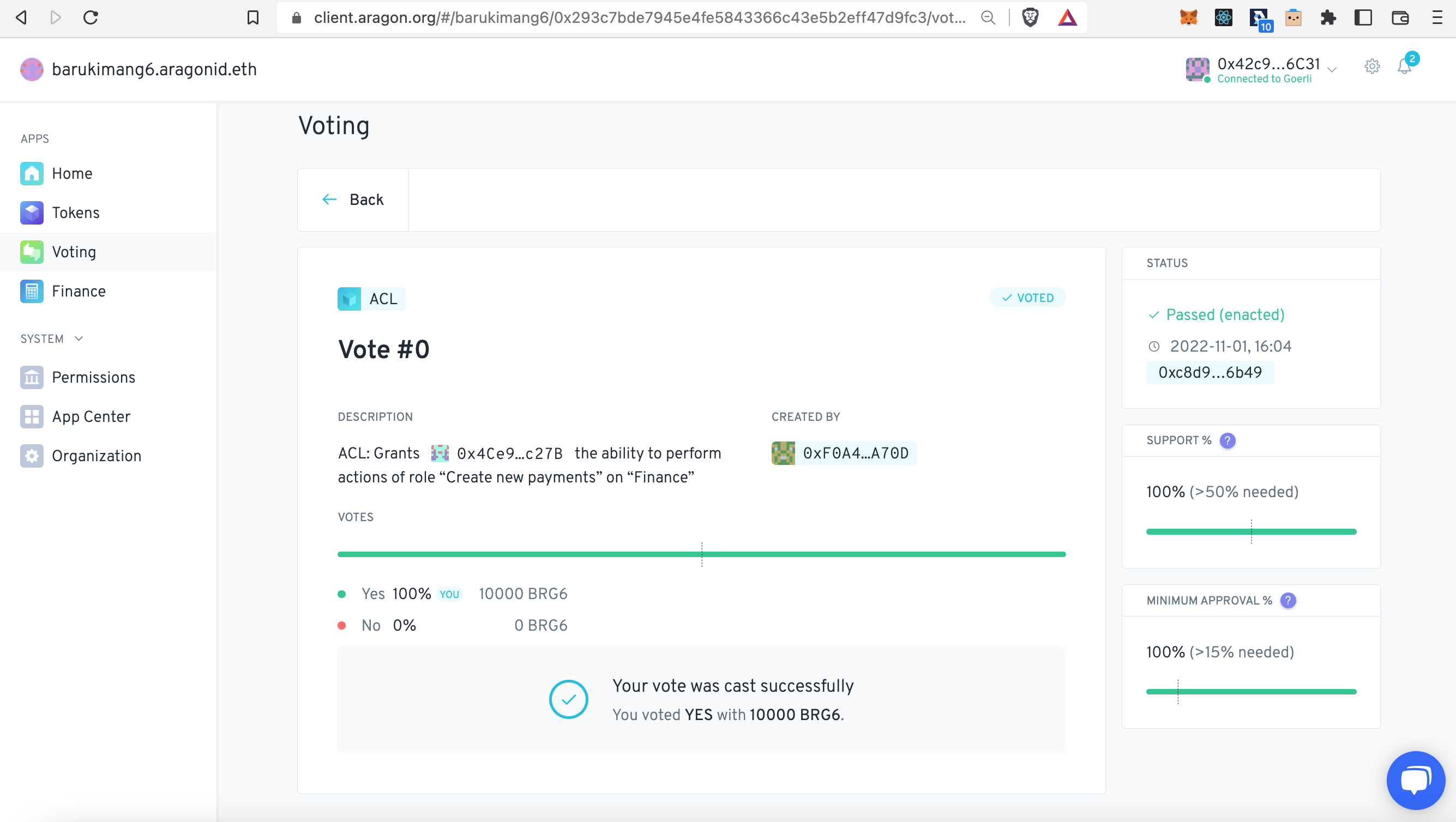
In our example it confirmed that the vote has passed:

<figure><img src="https://3850908891-files.gitbook.io/~/files/v0/b/gitbook-x-prod.appspot.com/o/spaces%2FaXHvfzzRoYTP2LsKM0Z6%2Fuploads%2FNMwvMoUsGu9uP5aRkGAi%2Fa14_sig.png?alt=media&amp;token=844c3603-e5f7-494f-abe0-a39049dc612a" alt=""><figcaption></figcaption></figure>

{% hint style="danger" %}
More DAO members might need to approve the vote for the vote to pass. This depends on the **SUPPORT** and **MINIMUM APPROVAL** settings of your DAO
{% endhint %}

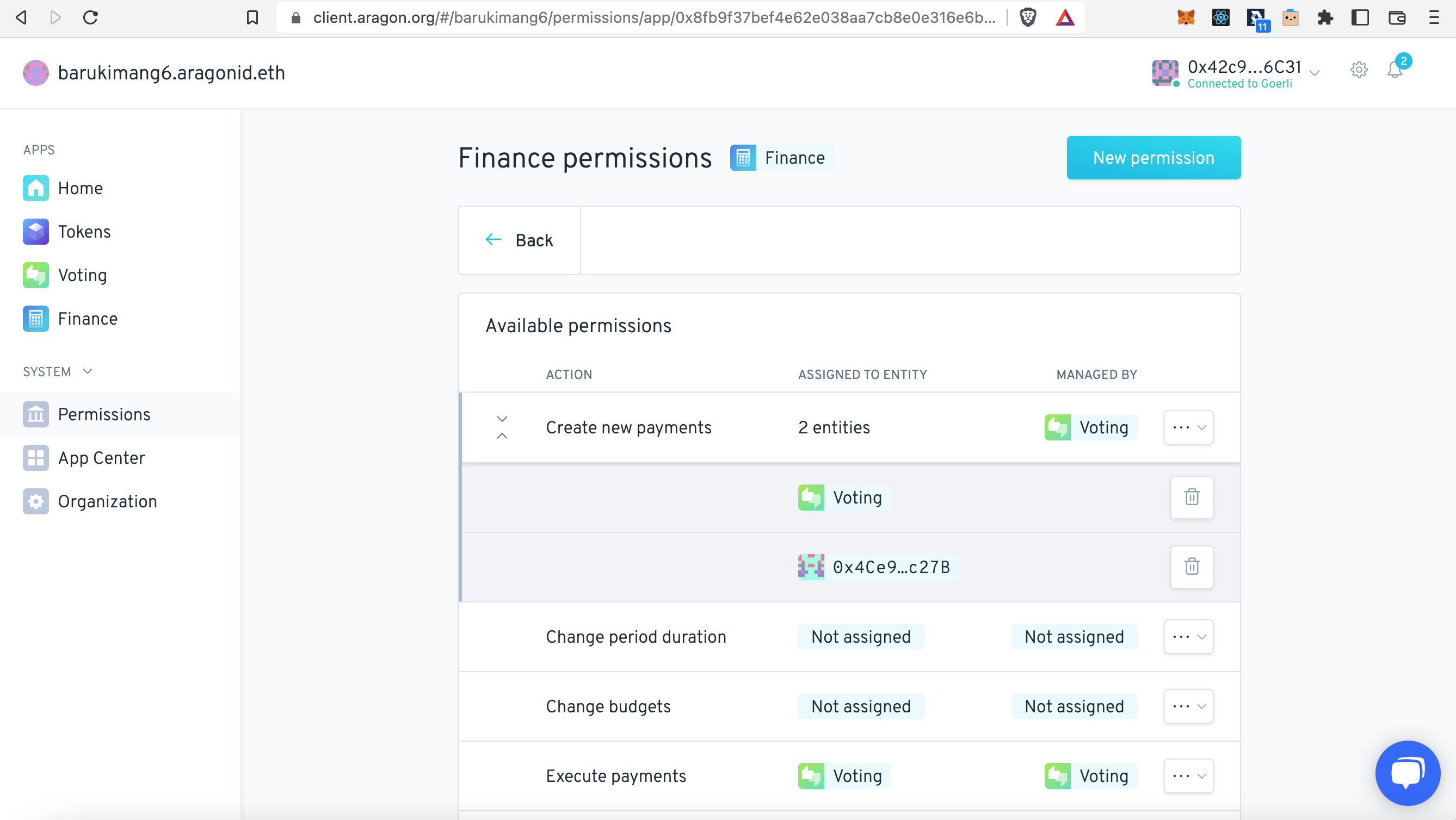
Now head over to the 'Permissions' app to check whether the permission for your MultiSig has been added. In our case click on the **Finance** app, and then unfold the 'Create new payments' permission. We now see that the MultiSig address has appeared!

<figure><img src="https://3850908891-files.gitbook.io/~/files/v0/b/gitbook-x-prod.appspot.com/o/spaces%2FaXHvfzzRoYTP2LsKM0Z6%2Fuploads%2Ftt1BLeYFTwuHsQVUYnWL%2Fa15_sig.png?alt=media&amp;token=dabe0407-f896-4f25-ad7b-0f48606c1849" alt=""><figcaption></figcaption></figure>

## Initiate payment at the MultiSig

Now that's done we can initiate a payment at the MultiSig!

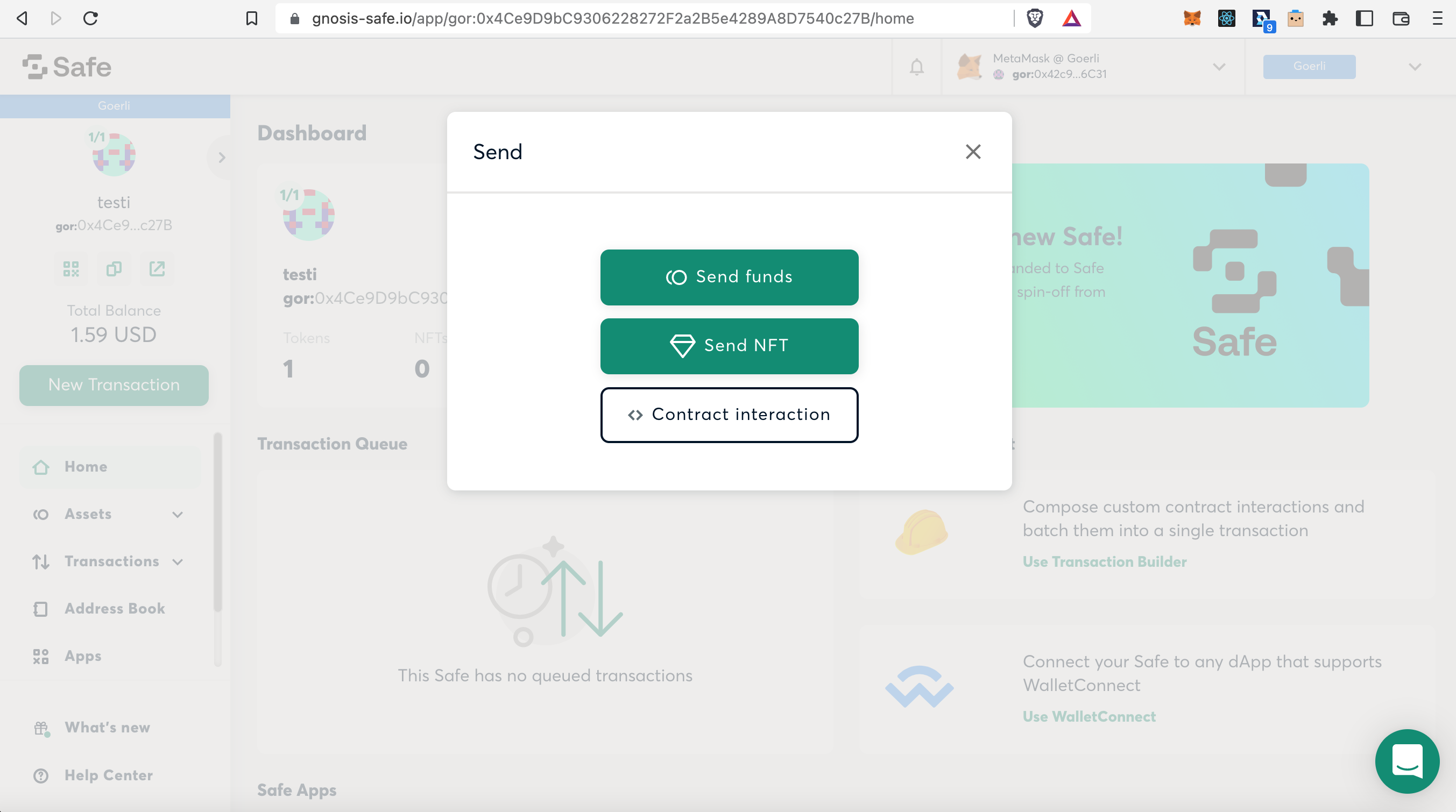
Head back to the (in this case) Gnosis Safe and press on 'New Transaction'. In the pop-up window which appears, press 'Contract Interaction':

<figure><img src="https://3850908891-files.gitbook.io/~/files/v0/b/gitbook-x-prod.appspot.com/o/spaces%2FaXHvfzzRoYTP2LsKM0Z6%2Fuploads%2FBnIqL75s0SXRBaIHwM5P%2Fa16_sig.png?alt=media&amp;token=c002df8a-c865-4688-a79c-98bc28f200b1" alt=""><figcaption></figcaption></figure>

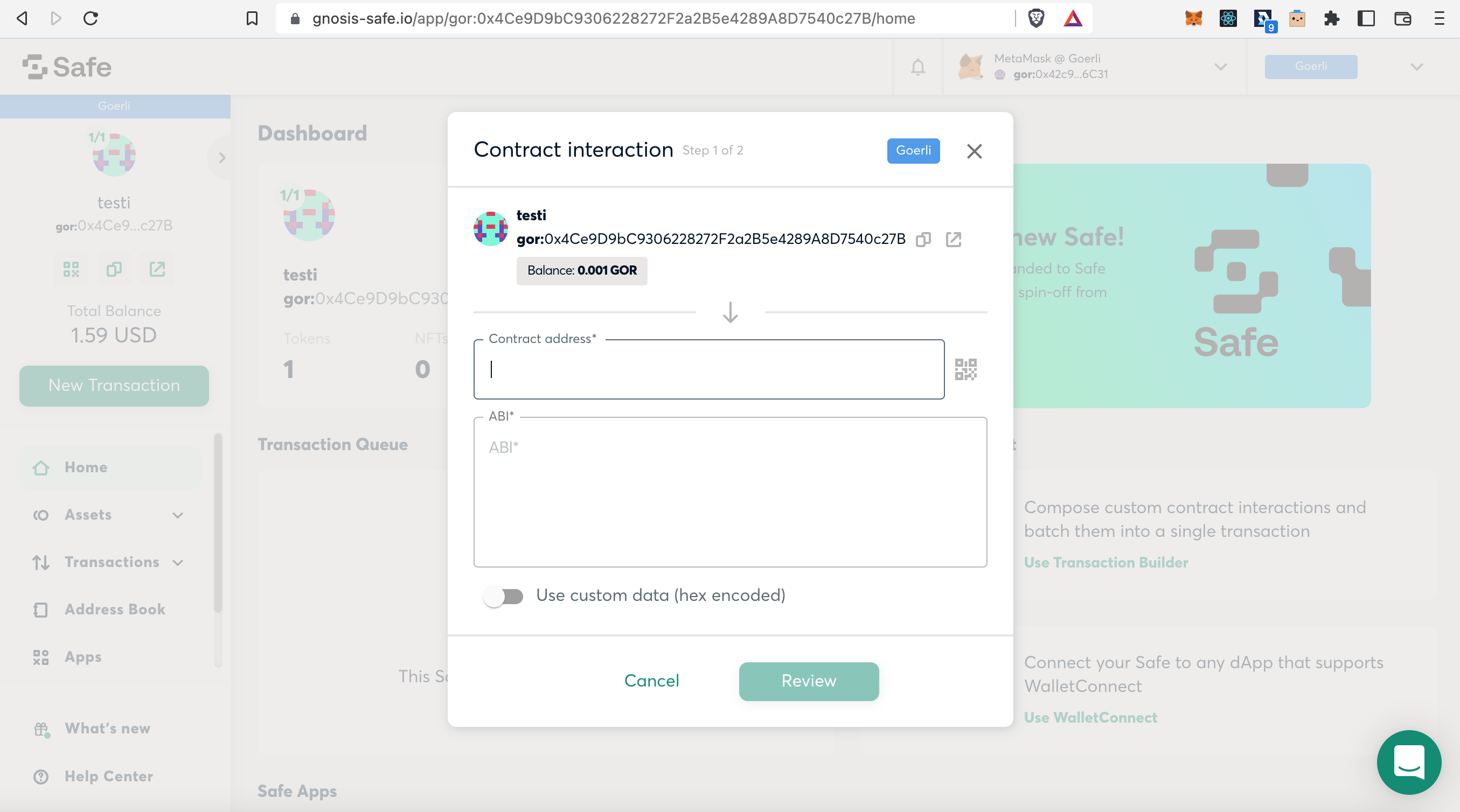
We now need the 'Contract address' of the app we want to interact with, which is the Finance app in this case:

<figure><img src="https://3850908891-files.gitbook.io/~/files/v0/b/gitbook-x-prod.appspot.com/o/spaces%2FaXHvfzzRoYTP2LsKM0Z6%2Fuploads%2FnJISlf1khKZ6VZv2hA7Q%2Fa17_sig.png?alt=media&amp;token=926c793d-3c12-4698-bbf6-239afcec3dde" alt=""><figcaption></figcaption></figure>

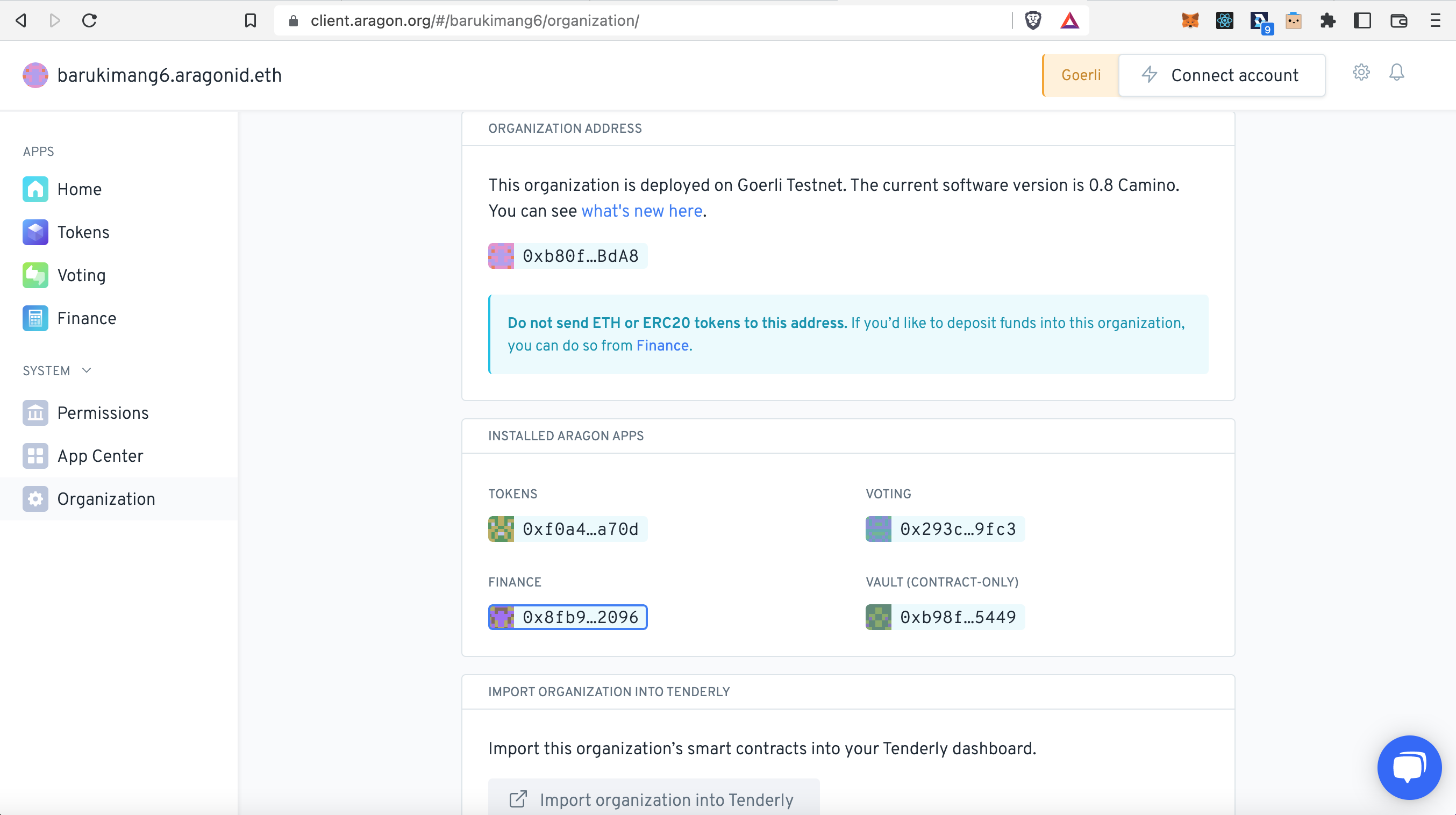
So head back to your Aragon Client DAO, open the **Organization** app, click on the address under (in this case) 'FINANCE', and copy the address:

<figure><img src="https://3850908891-files.gitbook.io/~/files/v0/b/gitbook-x-prod.appspot.com/o/spaces%2FaXHvfzzRoYTP2LsKM0Z6%2Fuploads%2FIP9Iwb753Hpi8B8X8oNj%2Fa18_sig.png?alt=media&amp;token=16eb60c4-5cab-4096-b2b8-79b08113d54e" alt=""><figcaption></figcaption></figure>

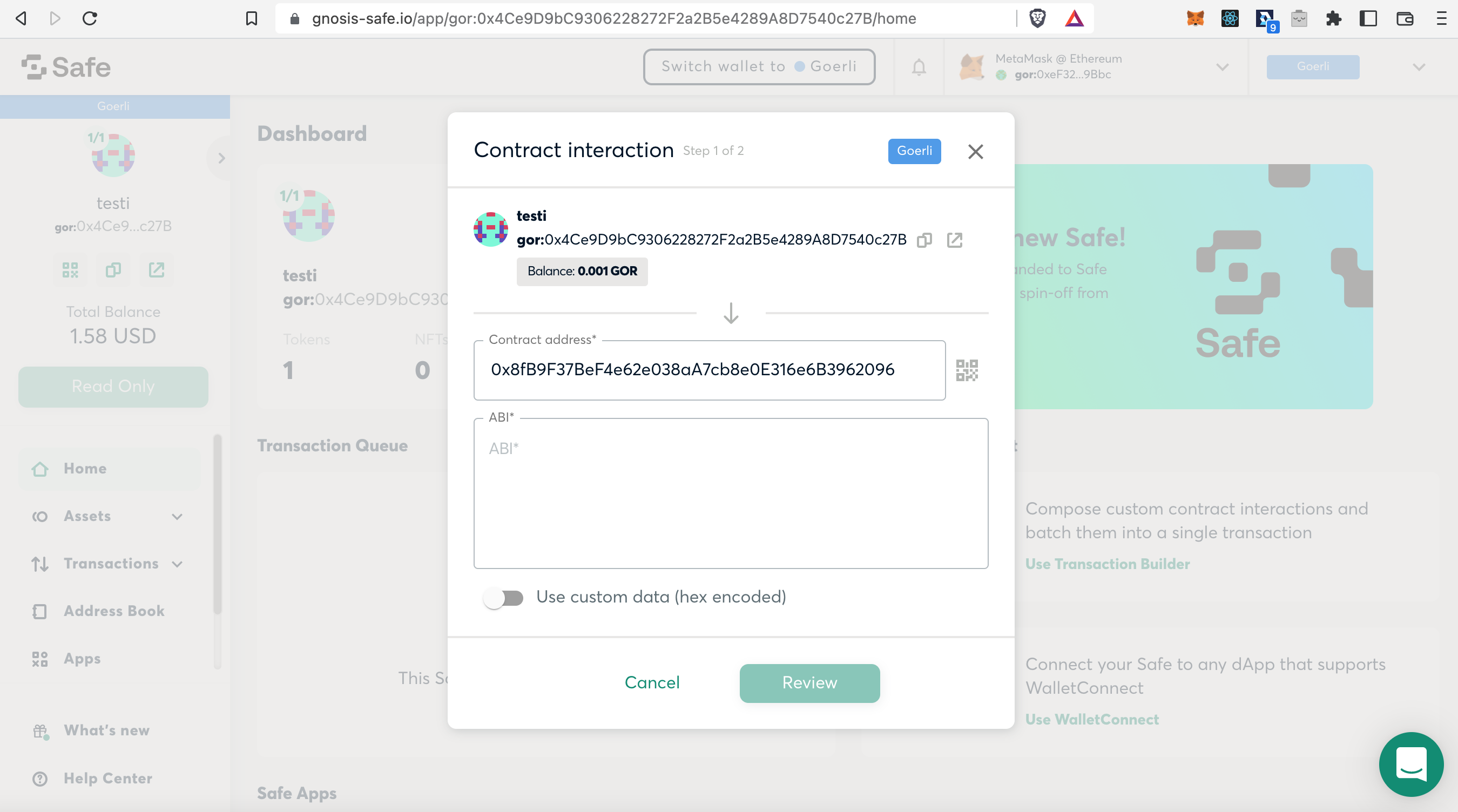
Paste the address in the 'Contract address' field back in the Gnosis Safe:

<figure><img src="https://3850908891-files.gitbook.io/~/files/v0/b/gitbook-x-prod.appspot.com/o/spaces%2FaXHvfzzRoYTP2LsKM0Z6%2Fuploads%2FhFLZVmq4LpaZfhIoTme6%2Fa19_sig.png?alt=media&amp;token=1dc2552e-7a80-446d-838b-0d2d999cfe8a" alt=""><figcaption></figcaption></figure>

{% hint style="danger" %}
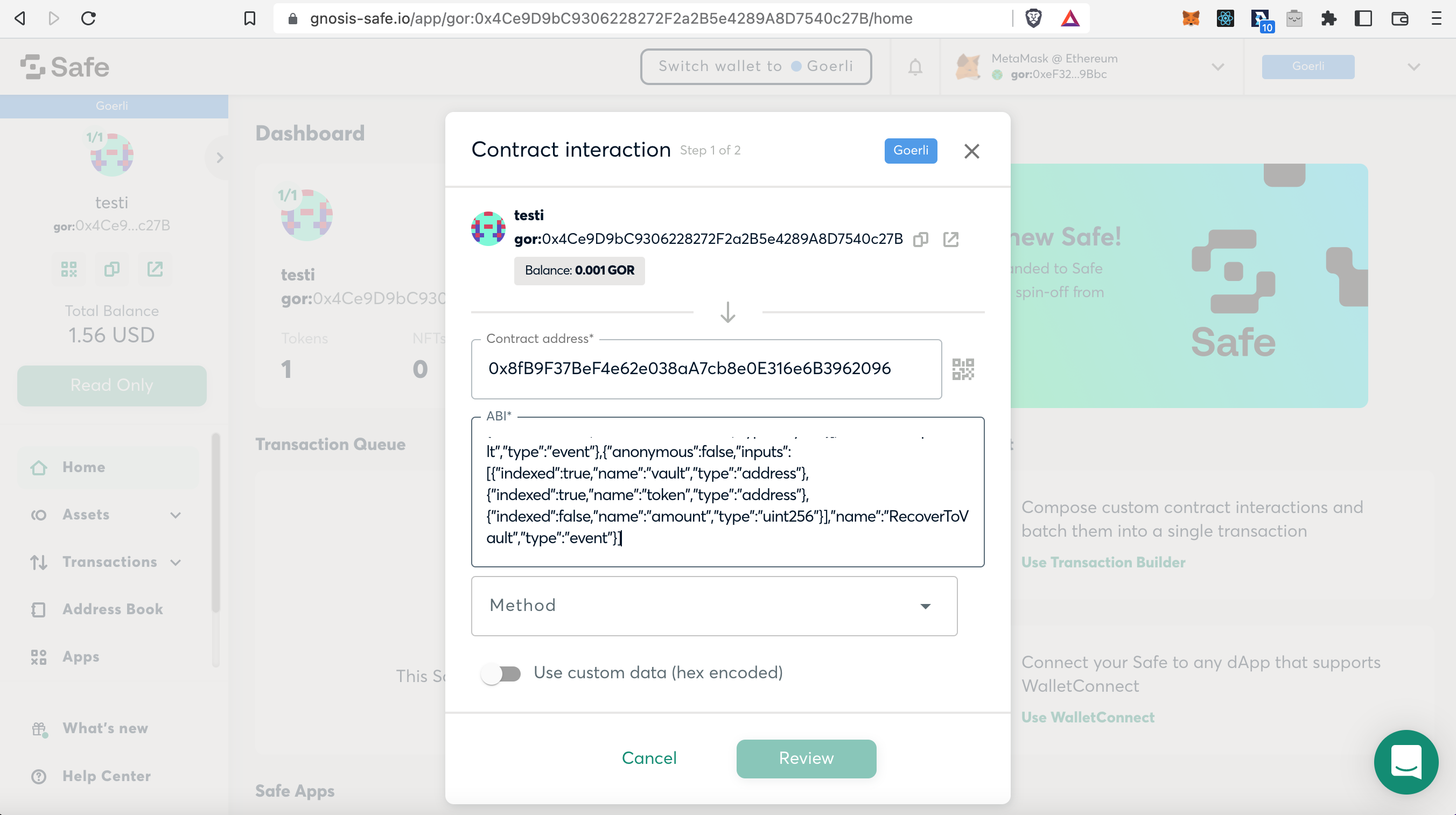
If the 'ABI' field automatically populates, **REMOVE** all the contents in the field, since we will need a different ABI
{% endhint %}

Now we need to get the ABI of the base contract of the app we interact with, which is the **Finance** app in this case. Click on 'Finance App' in the box below:

{% hint style="info" %}
You can find Etherscan links to the smart contracts of the most used apps below:

* [Tokens App](https://etherscan.io/address/0xde3A93028F2283cc28756B3674BD657eaFB992f4#code)
* [Finance App](https://etherscan.io/address/0x836835289A2E81B66AE5d95b7c8dBC0480dCf9da#code)
* [Voting App](https://etherscan.io/address/0xb935C3D80229d5D92f3761b17Cd81dC2610e3a45#code)
  {% endhint %}

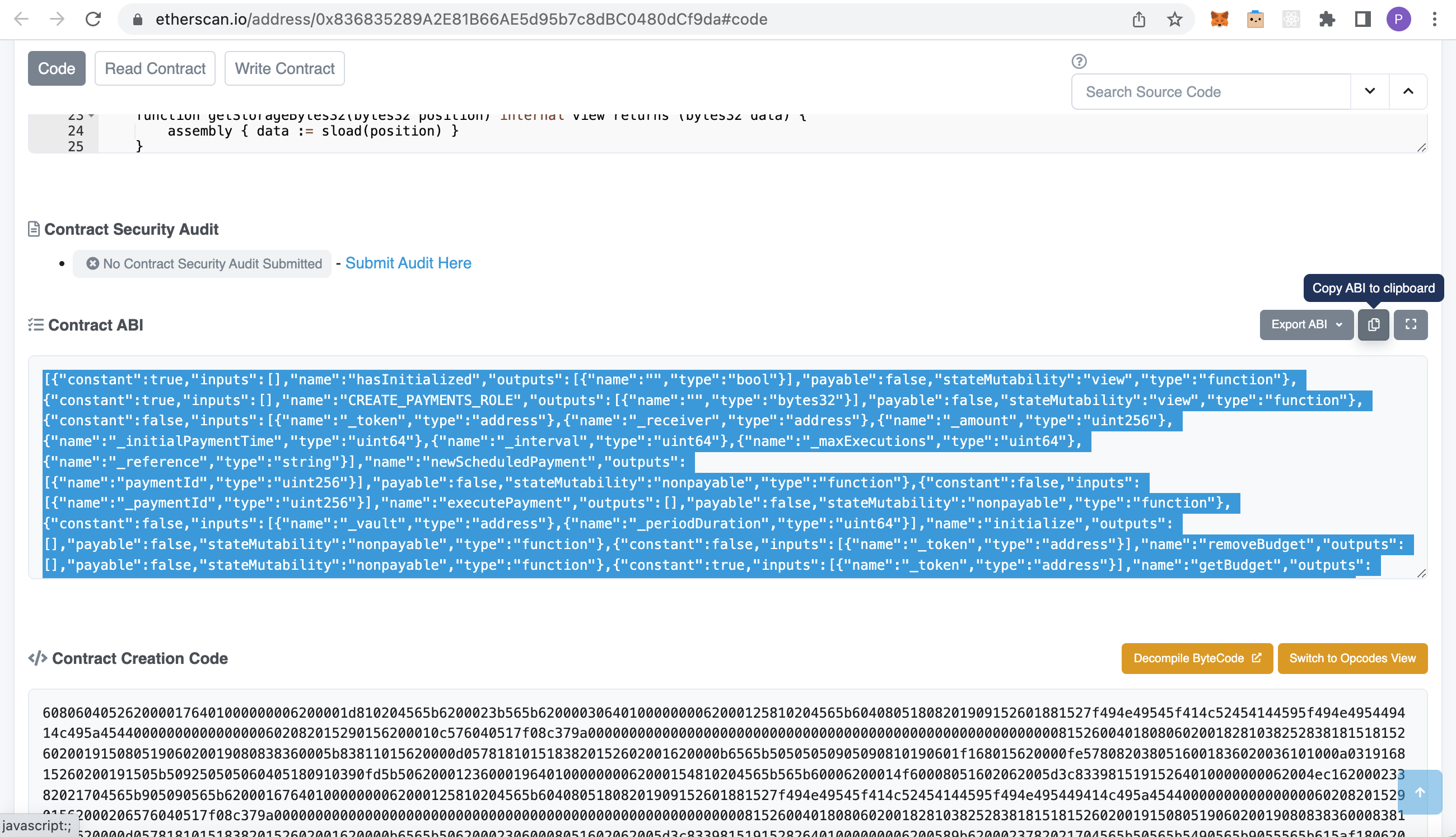
On the Etherscan page, scroll down until you see the 'Contract ABI' box. Click on the Copy symbol, to copy the ABI of the smart contract:

<figure><img src="https://3850908891-files.gitbook.io/~/files/v0/b/gitbook-x-prod.appspot.com/o/spaces%2FaXHvfzzRoYTP2LsKM0Z6%2Fuploads%2FVejLfGhBo2Df8QBj0KC9%2Fa20_sig.png?alt=media&amp;token=64f9fdca-fa33-494c-984f-594a08d11ba2" alt=""><figcaption></figcaption></figure>

Paste the ABI in the 'ABI' field in the Gnosis Safe, and click on 'Method':

<figure><img src="https://3850908891-files.gitbook.io/~/files/v0/b/gitbook-x-prod.appspot.com/o/spaces%2FaXHvfzzRoYTP2LsKM0Z6%2Fuploads%2FnqrqWTJDhE7uXm251shx%2Fa21_sig.png?alt=media&amp;token=46723414-490c-4c91-9cac-63000daed9bd" alt=""><figcaption></figcaption></figure>

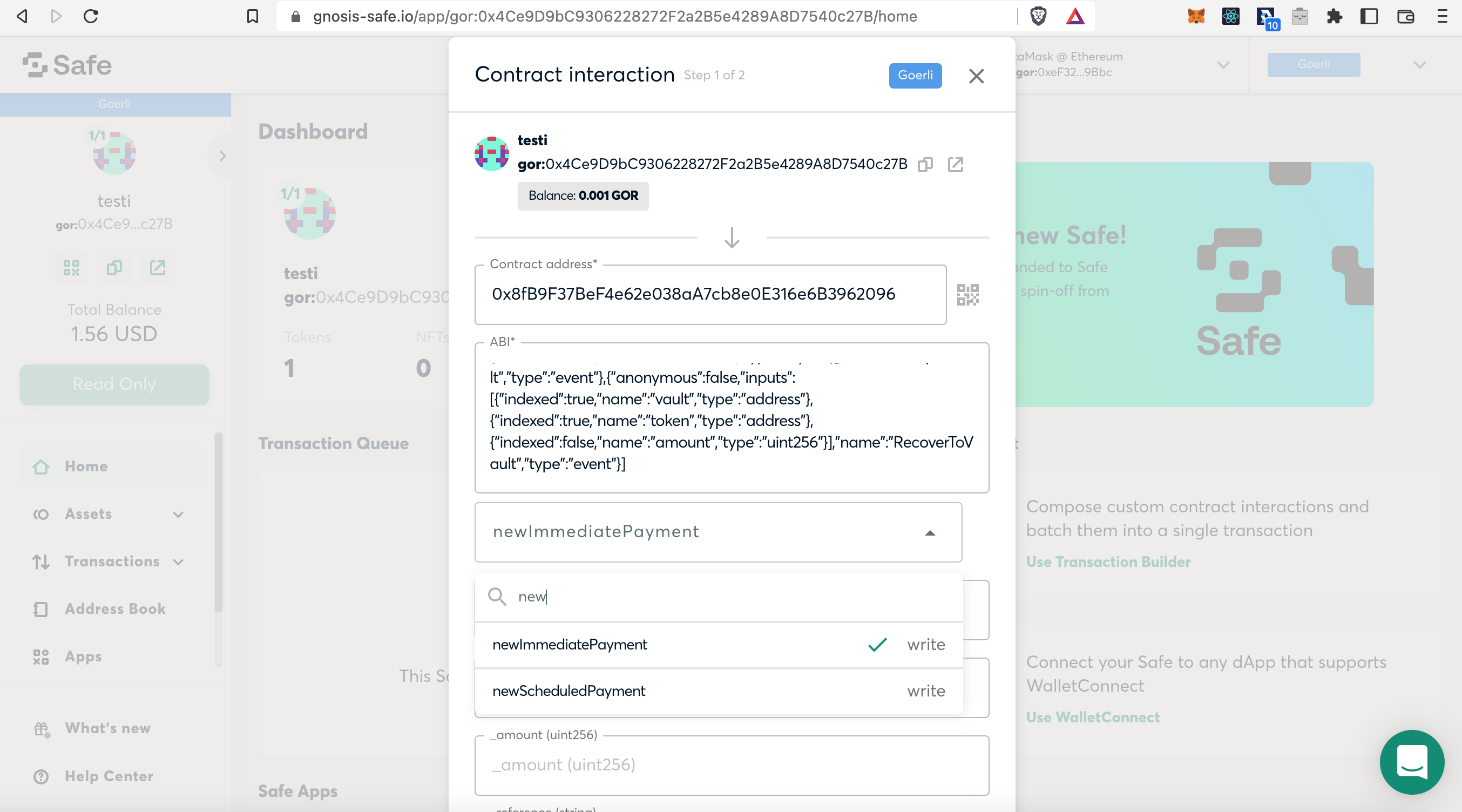
Search here for 'newImmediatePayment', since we want to do an immediate payment in this example, and select it:

<figure><img src="https://3850908891-files.gitbook.io/~/files/v0/b/gitbook-x-prod.appspot.com/o/spaces%2FaXHvfzzRoYTP2LsKM0Z6%2Fuploads%2FAoW94XSz3ByWo1S6Iip0%2Fa22_sig.png?alt=media&amp;token=428d73fc-8a29-4528-b6c9-dd9692127da7" alt=""><figcaption></figcaption></figure>

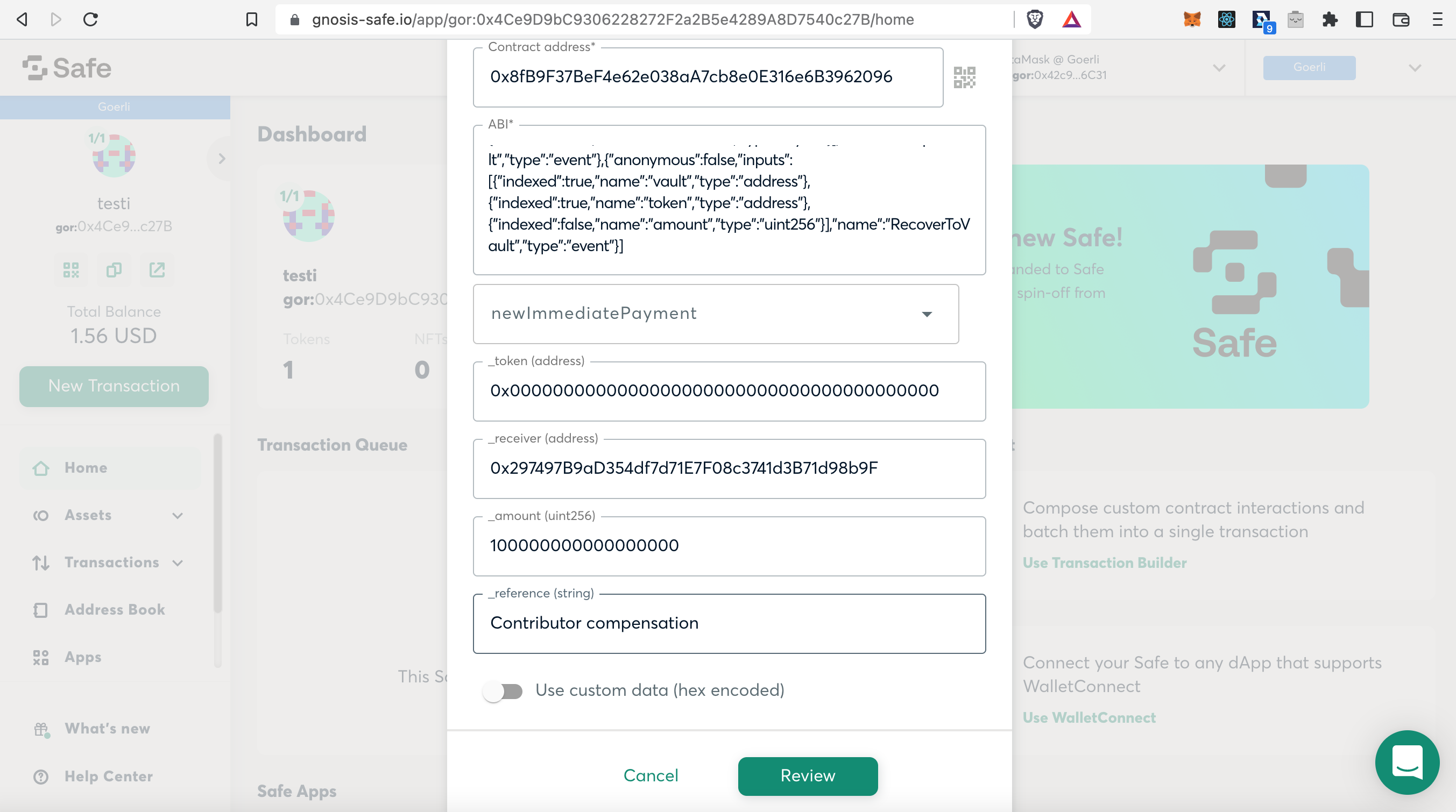
Now find the 'token address' of the token you want to send. In this case we are sending ETH. The token address of ETH is: `0x0000000000000000000000000000000000000000`

Add the 'receiver address' of in this example the Contributor.

Then add the 'amount'. In this case we will send the DAO Contributor an amount of 0.1 ETH.

{% hint style="danger" %}
For the 'amount' field, add 18 decimals to the original value. For example, if you want to invoke th&#x65;**`newImmediatePayment`**&#x6D;ethod to transfer 10.5 tokens, you will have to input 10.5 \* 10 ^ 18 = **`10500000000000000000`** into the amount field.
{% endhint %}

In our example the amount is 0.1 \* 10 ^ 18 = `100000000000000000`

Then you can add a 'reference string' as a payment reference, and click on 'Review':

<figure><img src="https://3850908891-files.gitbook.io/~/files/v0/b/gitbook-x-prod.appspot.com/o/spaces%2FaXHvfzzRoYTP2LsKM0Z6%2Fuploads%2FvZ4CKoNCMsQwKGsmkHfp%2Fa23_sig.png?alt=media&amp;token=d6c500c5-239c-4368-83cc-5667c6aa0280" alt=""><figcaption></figcaption></figure>

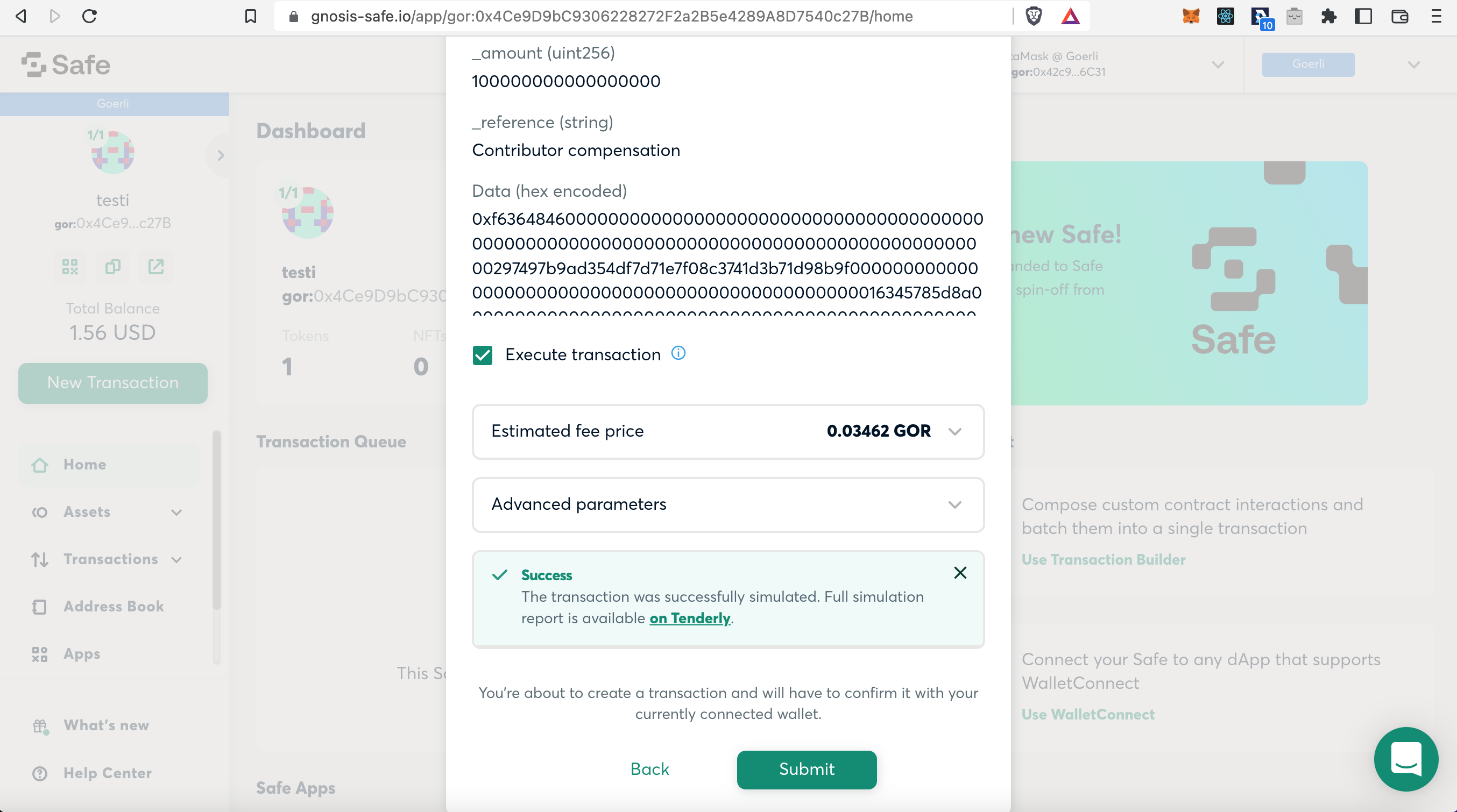
Scroll down and test the transaction by clicking on 'Simulate'. If all is well it should display 'Success'. If so, click on 'Submit':

<figure><img src="https://3850908891-files.gitbook.io/~/files/v0/b/gitbook-x-prod.appspot.com/o/spaces%2FaXHvfzzRoYTP2LsKM0Z6%2Fuploads%2FiUnG3Fhj7E7Z1LUUU1rl%2Fa24_sig.png?alt=media&amp;token=ec34d32d-3bb1-494e-af24-05191280d170" alt=""><figcaption></figcaption></figure>

{% hint style="danger" %}
If the **simulation has failed** and you get warnings (like a gas estimation error) there has likely been a mistake either in permissions, method parameters, or ABI and contract address. Please go through the setup again
{% endhint %}

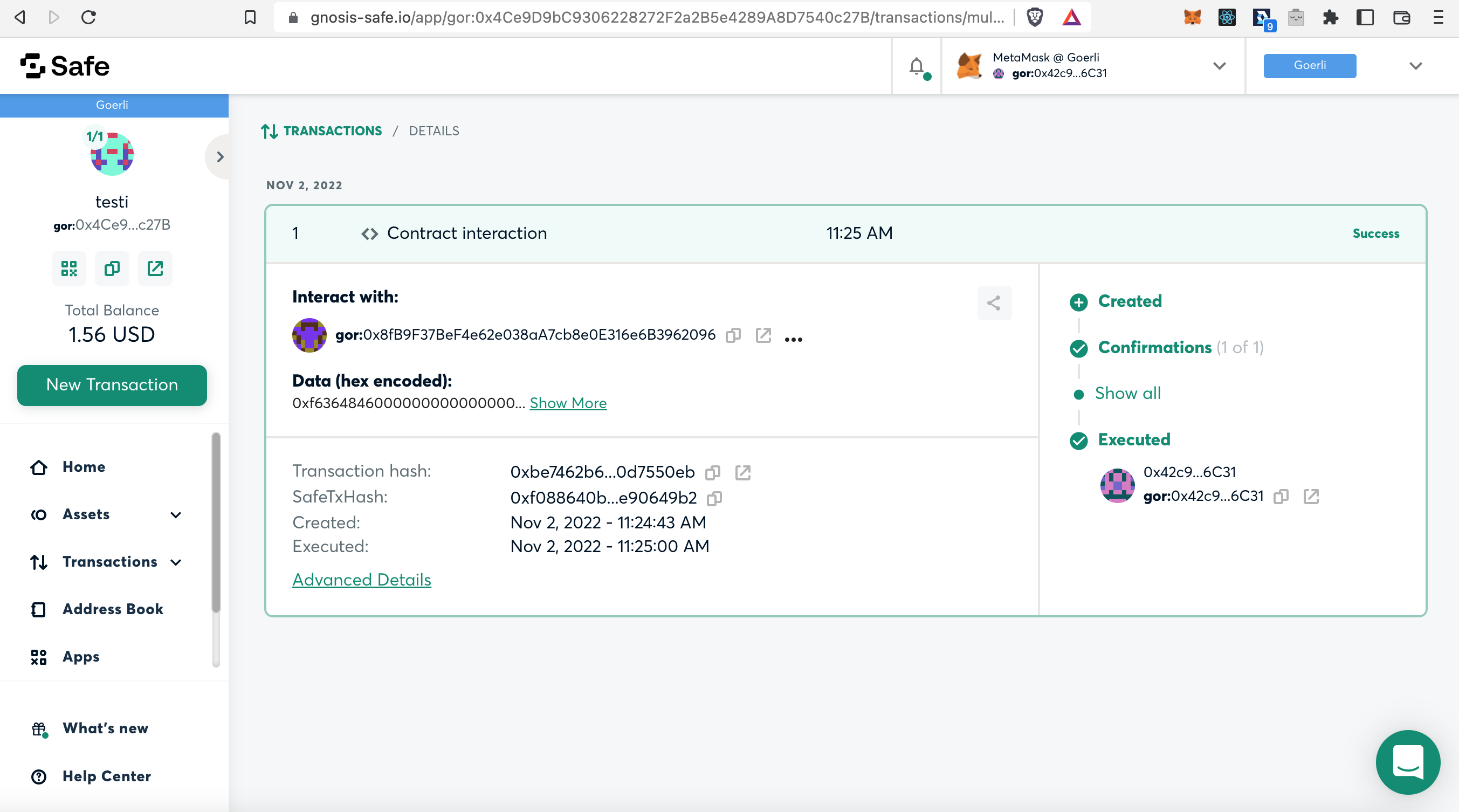
A transaction should pop-up in your Web3 Wallet. 'Confirm' the transaction and wait for it to be processed. If all good, it executed:

<figure><img src="https://3850908891-files.gitbook.io/~/files/v0/b/gitbook-x-prod.appspot.com/o/spaces%2FaXHvfzzRoYTP2LsKM0Z6%2Fuploads%2F1HmZ9NmdRT78K5ynwbdZ%2Fa25_sig.png?alt=media&amp;token=59e0f4a8-f485-4990-8d2f-2683dcb9aec2" alt=""><figcaption></figcaption></figure>

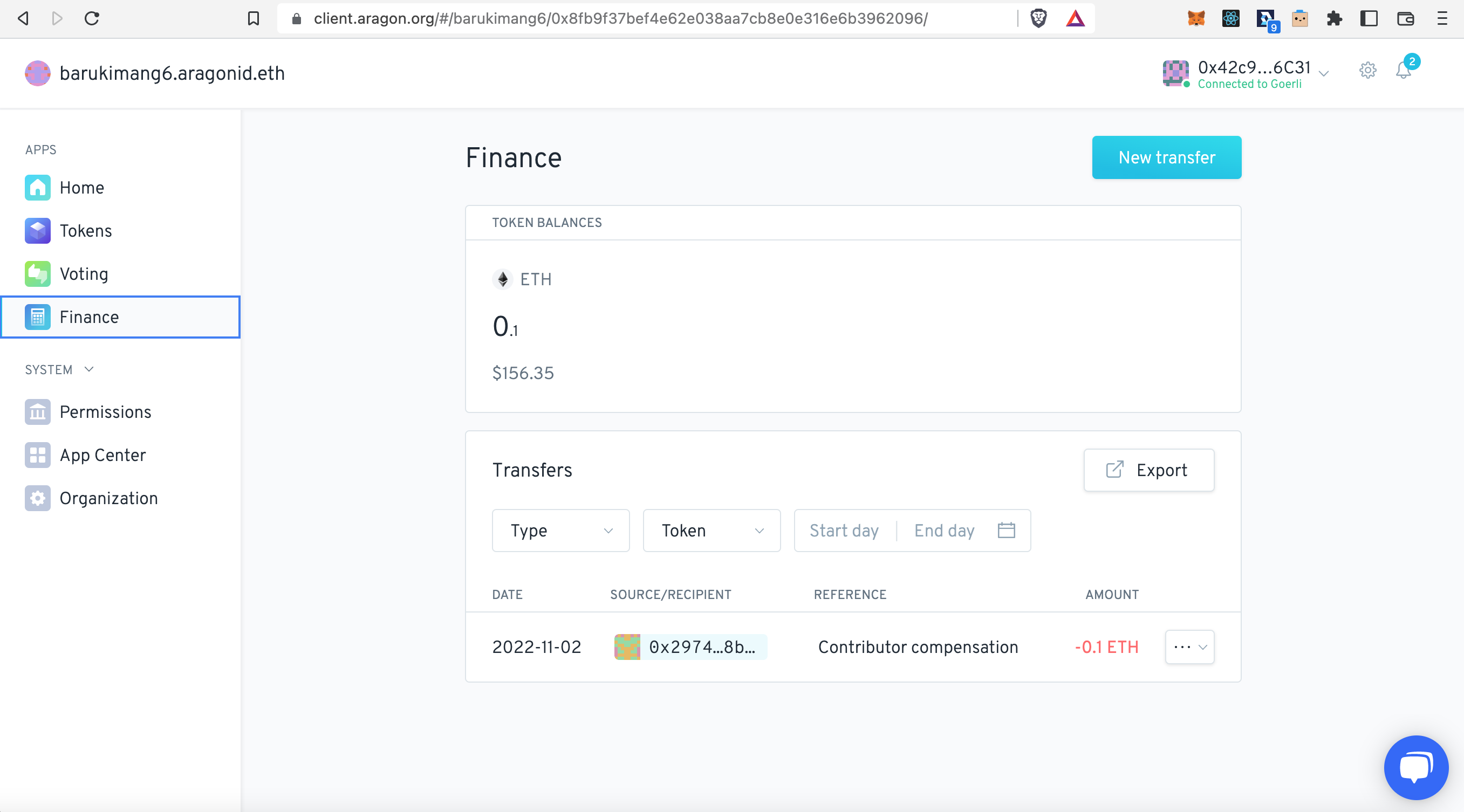
Head back for the last time to your Aragon Client DAO :fingers\_crossed:, and open the **Finance** app. In our example we see that a 'Contributor compensation' of 0.1 ETH is displaying in the 'Transfers' overview:

<figure><img src="https://3850908891-files.gitbook.io/~/files/v0/b/gitbook-x-prod.appspot.com/o/spaces%2FaXHvfzzRoYTP2LsKM0Z6%2Fuploads%2FkorUFHgD2swxTilm5o3k%2Fa26_sig.png?alt=media&amp;token=50324d7c-19e1-4473-93b3-e7c58e5508e2" alt=""><figcaption></figcaption></figure>

We did it! :partying\_face: Well done! :medal:

> <mark style="color:purple;">**Do you have a question? Leave your comments here at our Discourse forum**</mark>**&#x20;👇**

{% embed url="<https://support.aragon.org/t/web3-multisig-wallet/17/2>" %}